Design a Scene
A scene is one full screen that you design yourself. You can put pictures, videos, text, a website or the weather on it, side by side or on top of each other. It works a bit like Canva or a slide in a presentation.
Use a scene when one picture or one video isn't enough. For example: a menu picture on the left, today's weather on the right, and a line of text at the bottom.
Open the scene editor
1. Open a playlist (see Create a Playlist). Click Add media, then New Scene.
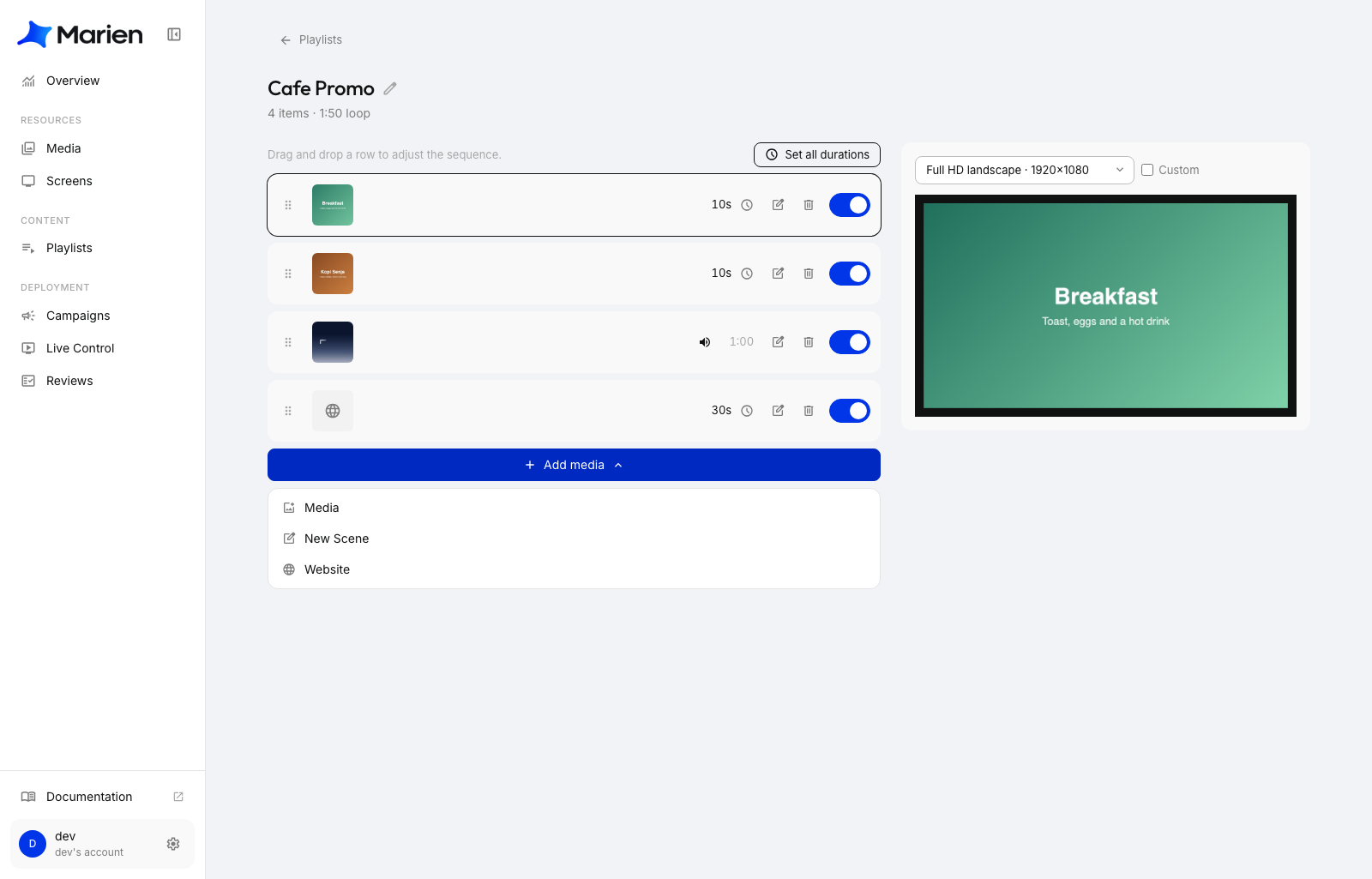
2. The editor opens on top of the page. Take a moment to look around:
- Left: the tools: Layout, Media, Apps, Website, Text and Background.
- Middle: the canvas, which is your screen.
- Right: the Layers list and the settings of whatever you've clicked.
- Top: Shown on is the screen shape you're designing for. Pick your own screen here so what you see is what the screen will show. Apply saves the scene.
Split the screen into boxes (optional)
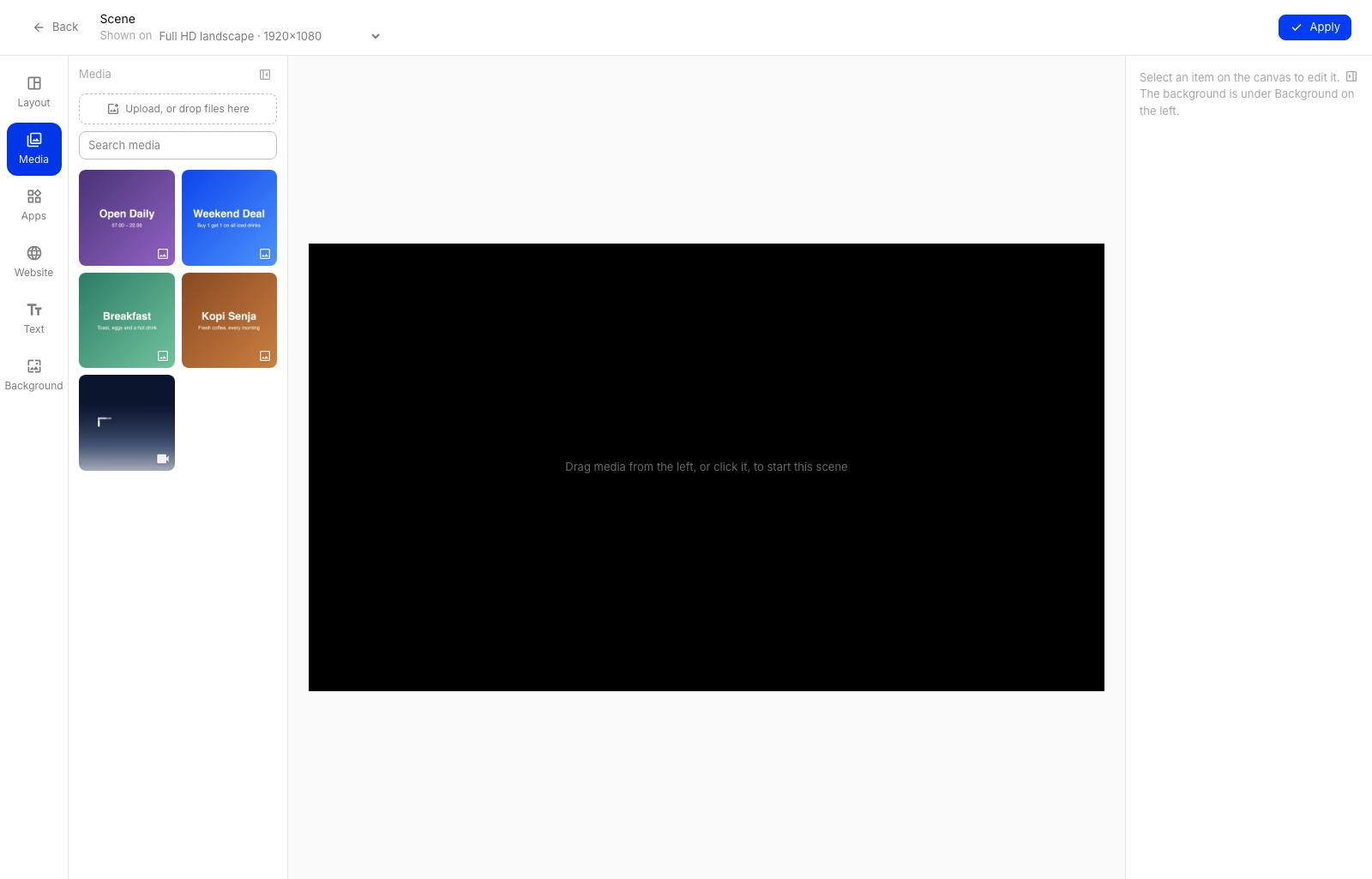
3. Click Layout and pick a layout, for example Big and side. The canvas is cut into boxes. Anything you add goes into a box. Choose None if you'd rather place things freely.
Add pictures and videos
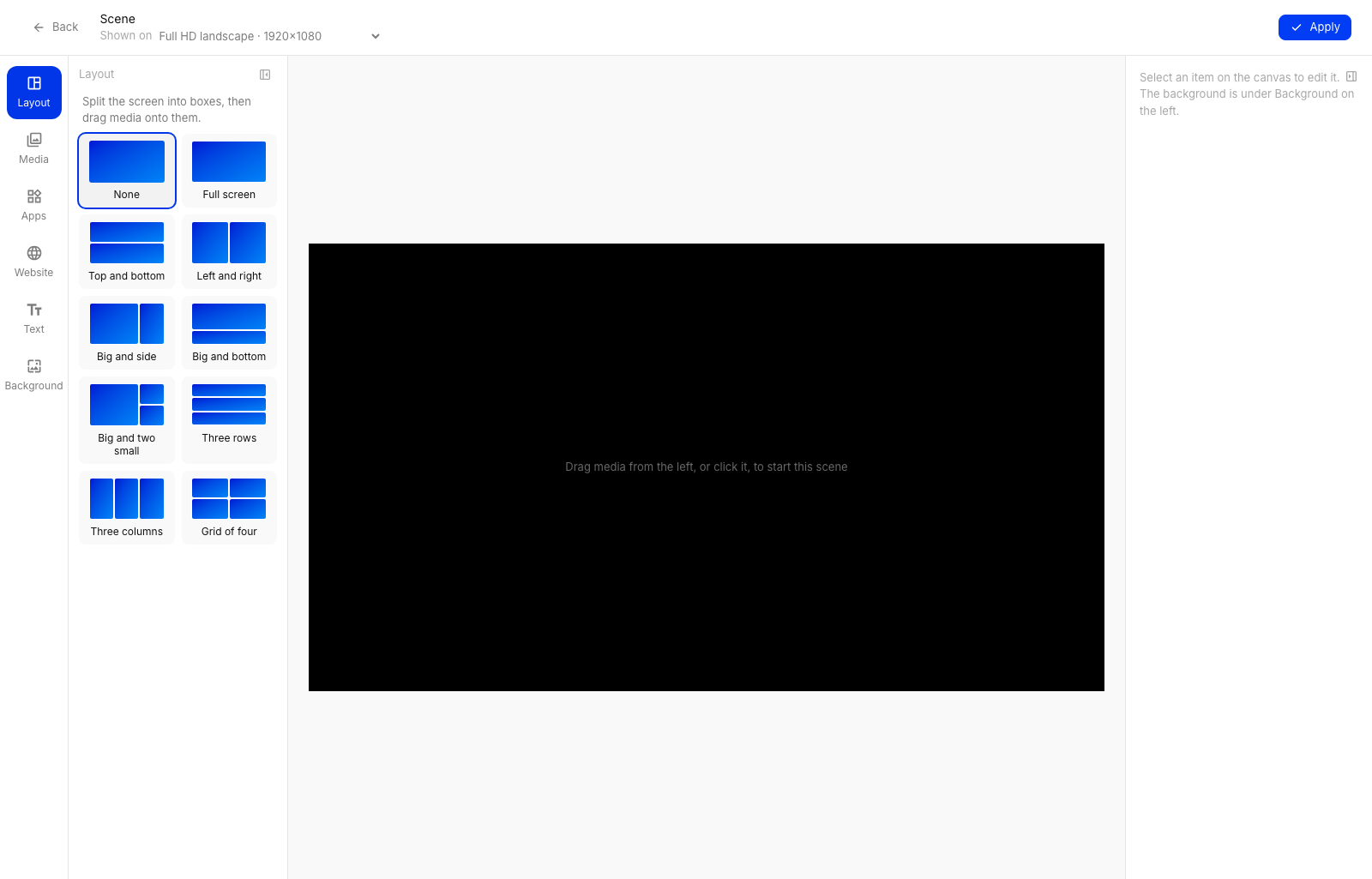
4. Click Media, then click a picture or video, or drag it onto the canvas. With a layout, it fills the next empty box. To use a new file, click Upload.
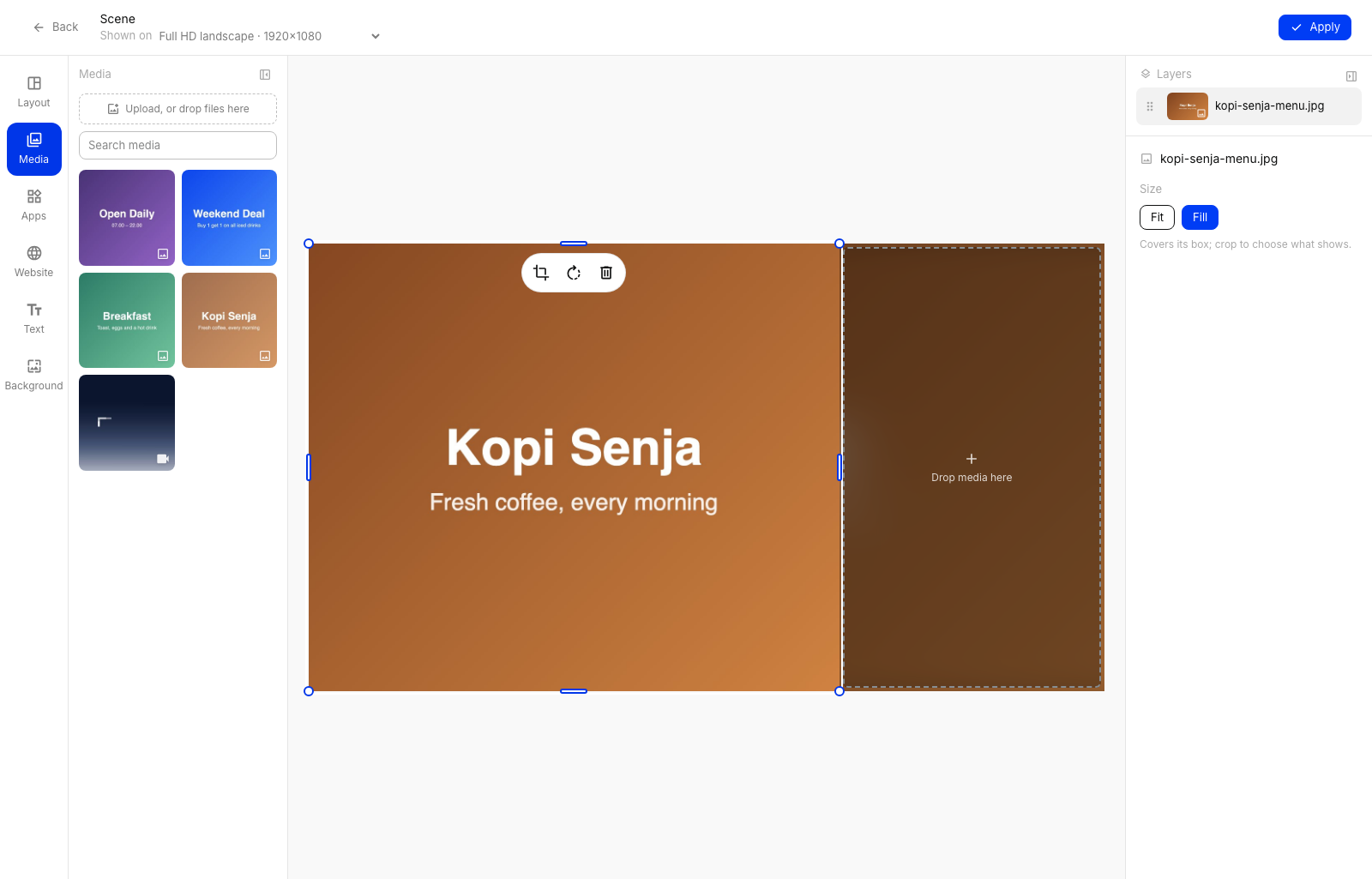
Click an item on the canvas to change it:
- Drag it to move it. Drag a corner or an edge to resize it.
- Fit shows the whole picture. Fill covers the whole box and may cut off the edges. With Fill you can use the crop icon to choose which part shows.
- The turning arrow rotates it a quarter turn, and the bin icon deletes it.
- On a video, you can also choose Mute or Unmute.
Add text
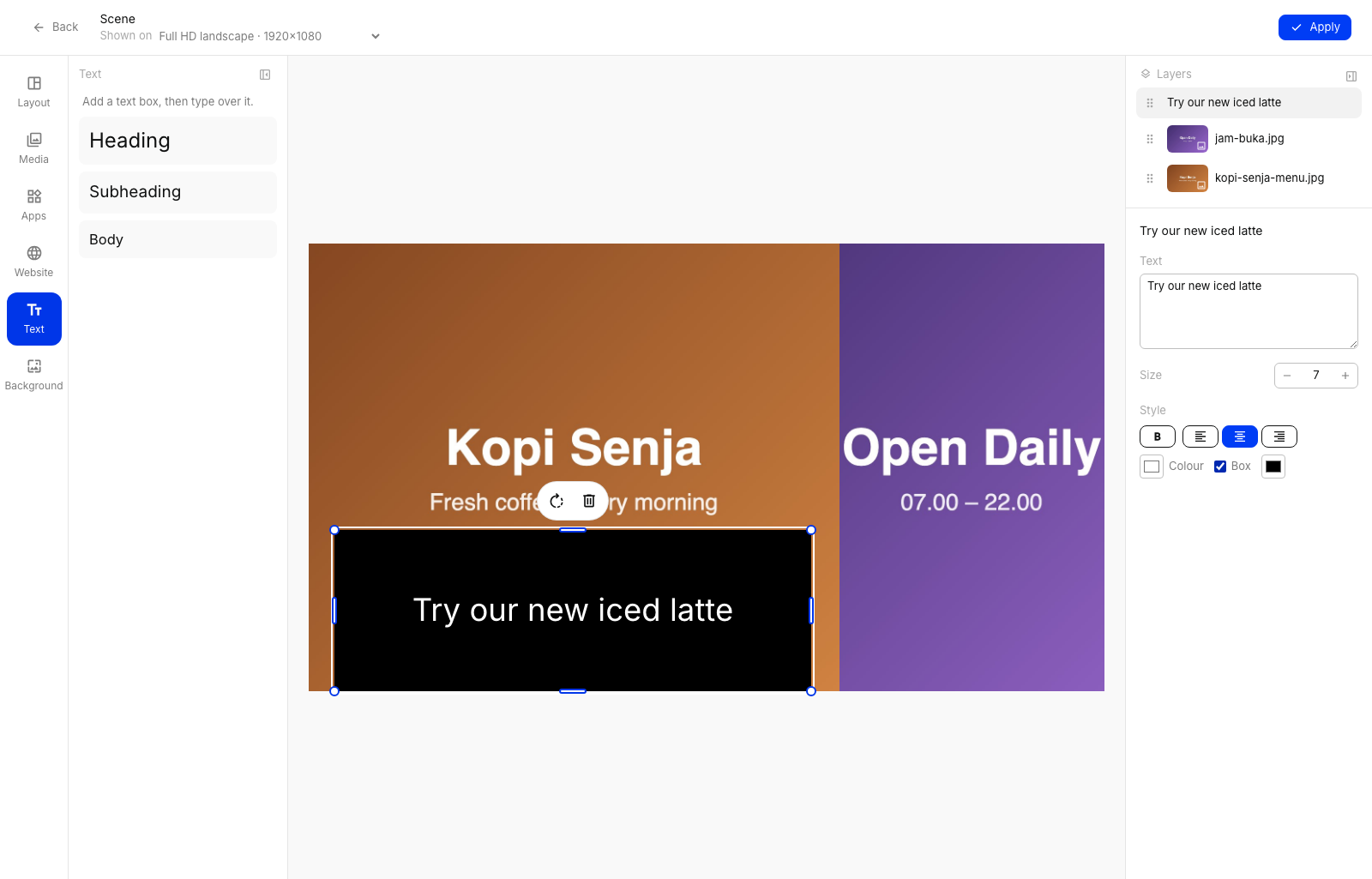
5. Click Text, then click Heading, Subheading or Body. A text box appears. Type your own words in the Text box on the right.
You can change the Size, make the text Bold, align it left, centre or right, change its Colour, and tick Box to put a coloured block behind it. Drag the text box to where you want it.
Add the weather or a clock
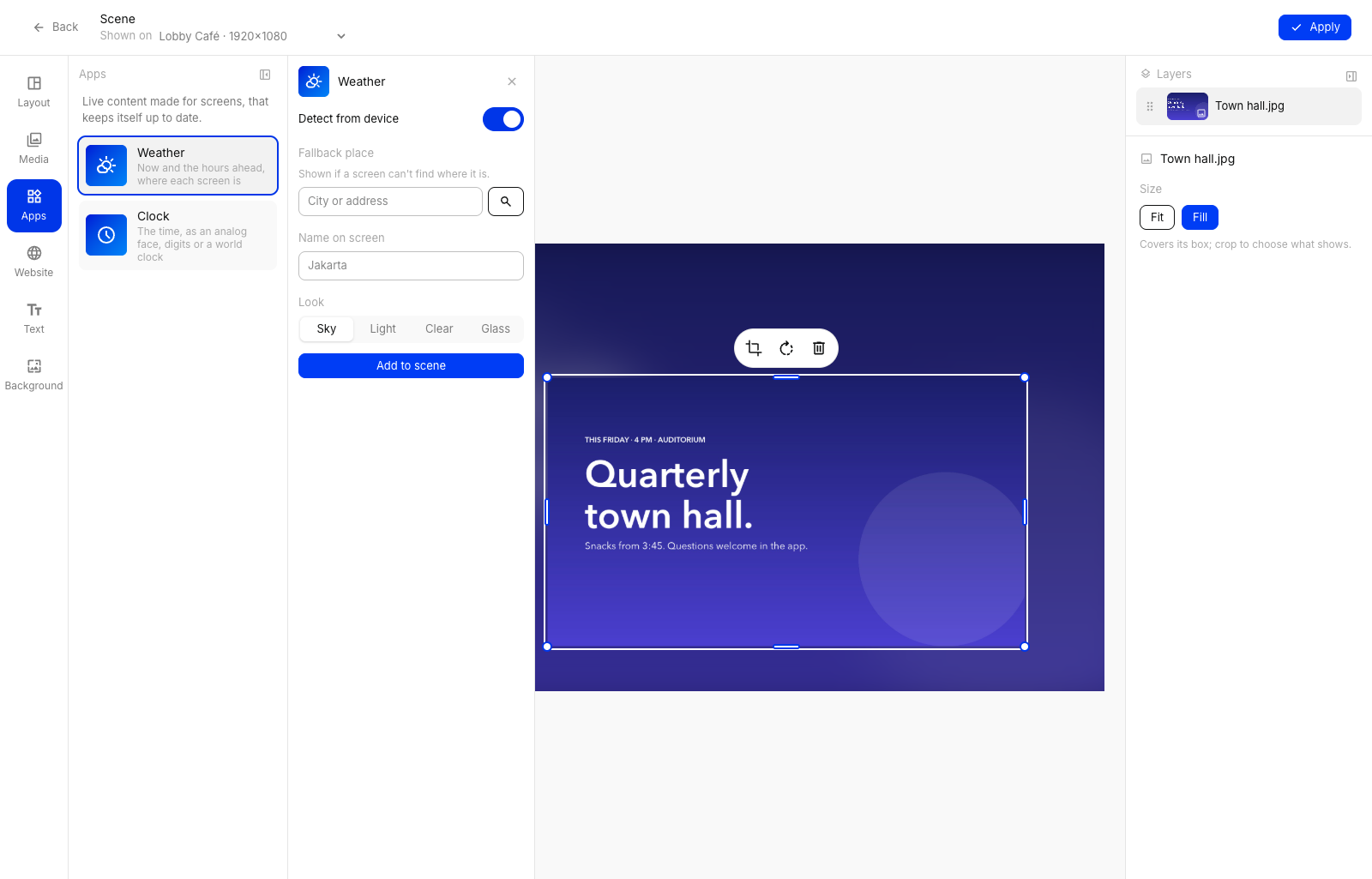
6. Click Apps, then Weather. Leave Detect from device on and the screen shows the weather of the place where it stands; the Fallback place is used if it can't tell. Or switch it off and type a city. Type the name to show on screen, pick a Look, then click Add to scene.
Clock, next to it, adds the time: an analog face, digits, or a world clock.
Add a website
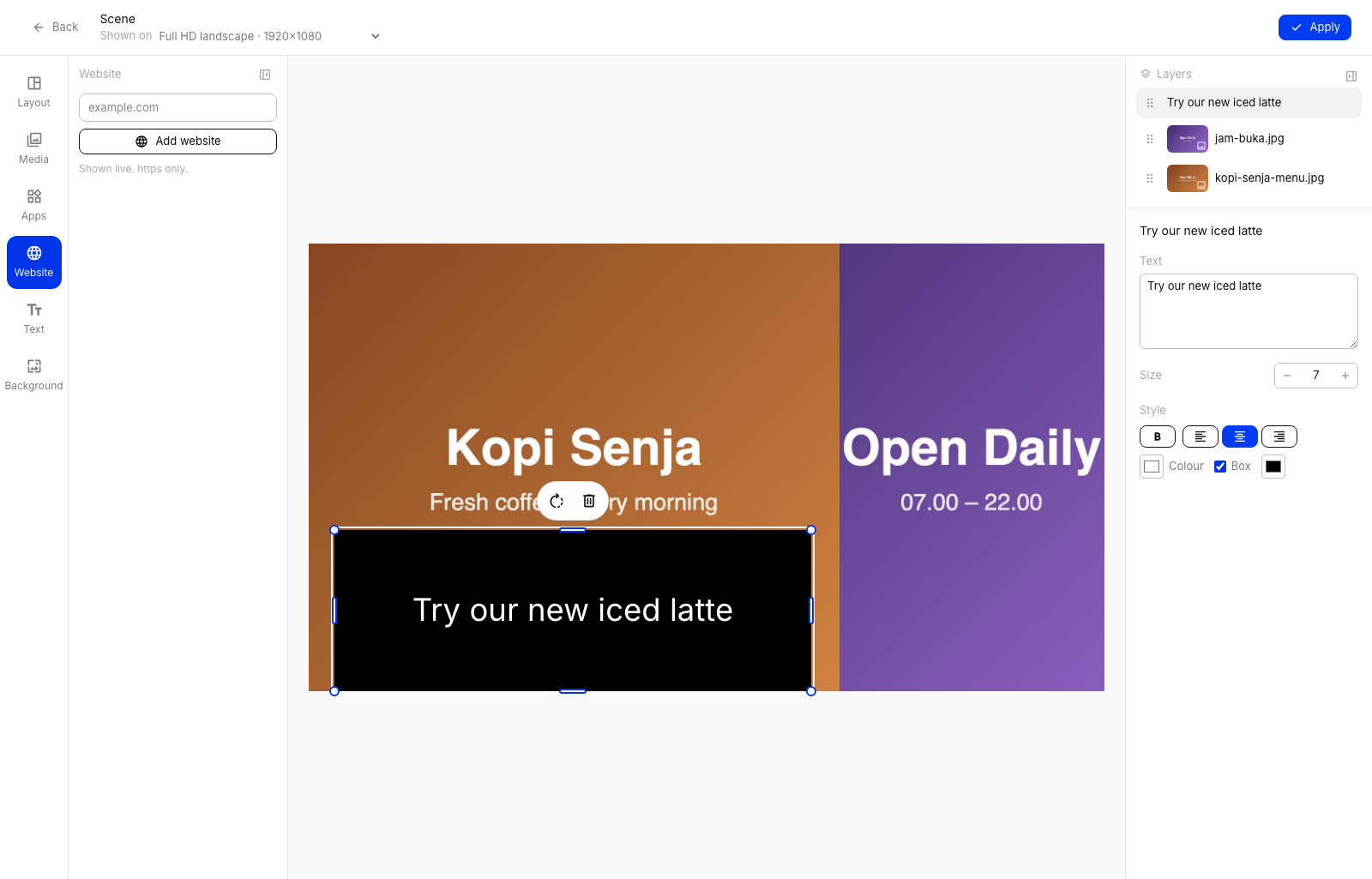
7. Click Website, type the address and click Add website. The website is shown live, and it must start with https.
Choose a background
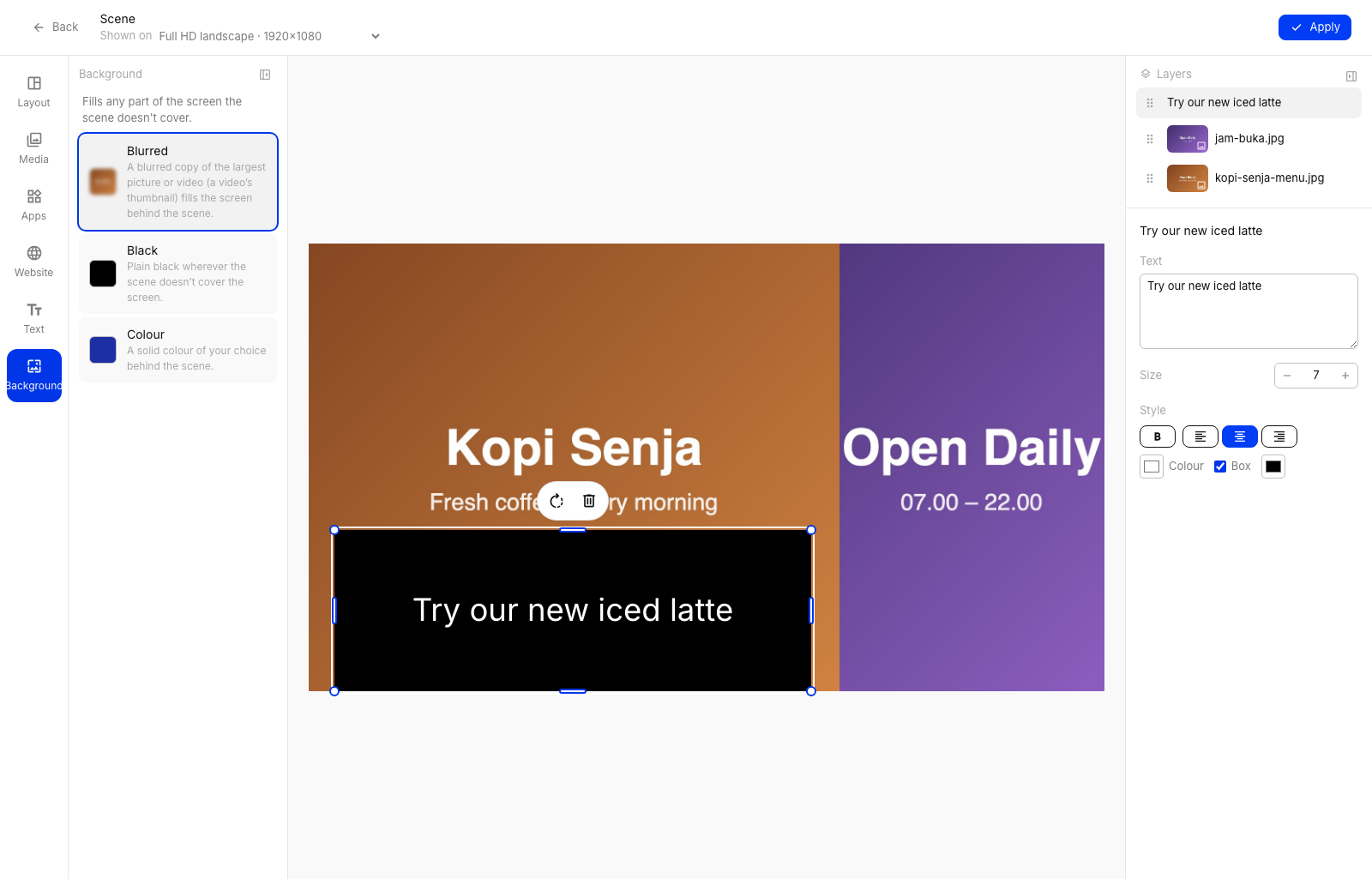
8. Click Background to decide what fills the parts of the screen your items don't cover:
- Blurred: a blurred copy of your biggest picture or video.
- Black: plain black.
- Colour: a colour you pick.
Finish
9. Click Apply. You're back in the playlist, and the scene is a new row. Click Save on the playlist to keep it.
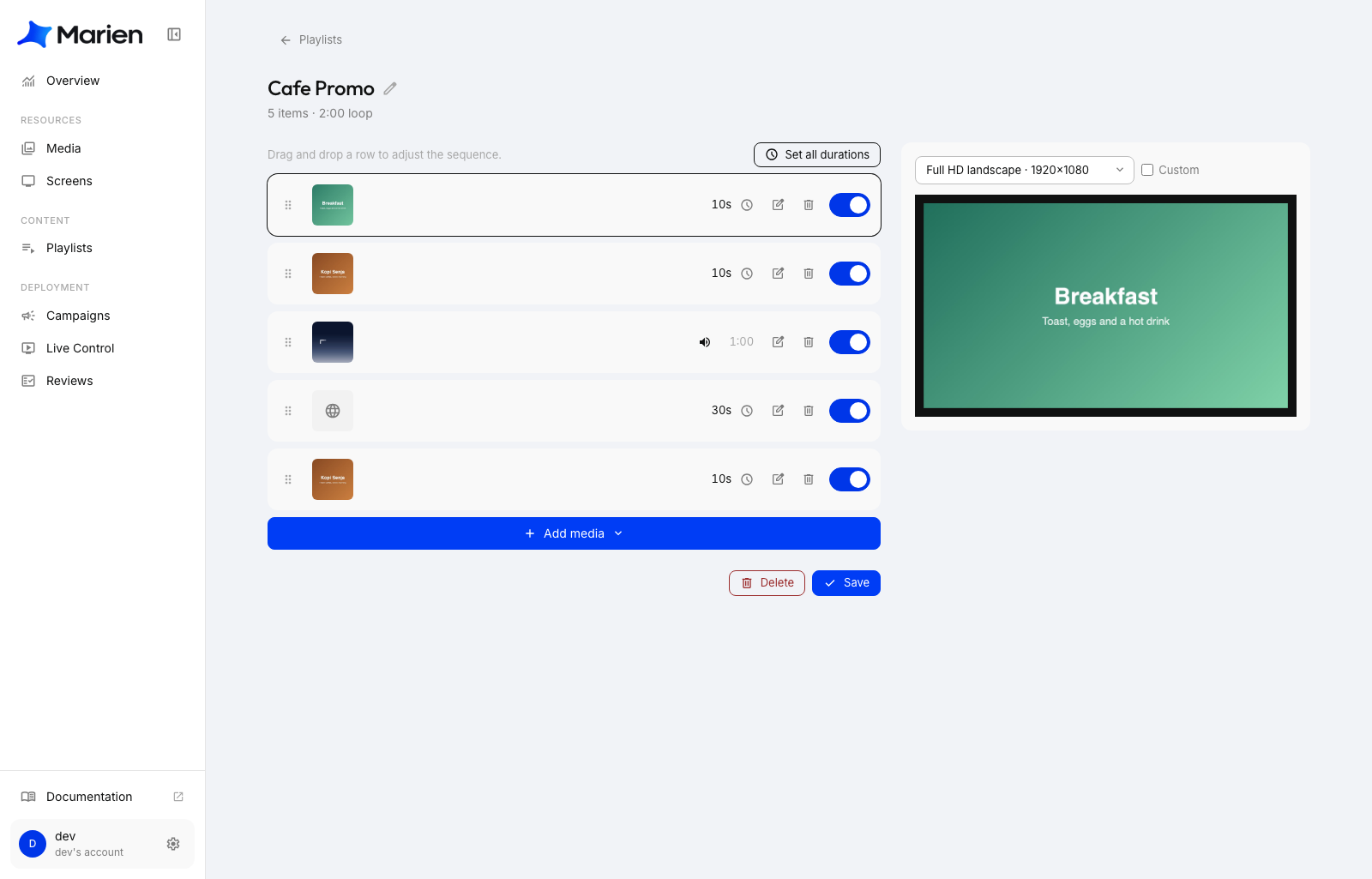
To change a scene later, click the pencil icon on its row.
Tip
The Layers list on the right shows everything in the scene. Click a name to select that item. Drag a name up or down to decide which item sits on top.
Warning
Videos, websites and apps play live on the screen, which is heavy work for it. One scene can hold up to 2 of them, and only 1 video. Pictures and text have no limit.
Next: Create a Campaign to put your playlist on a screen.