Create a Campaign
A campaign puts playlists on screens: all the time, or on a schedule.
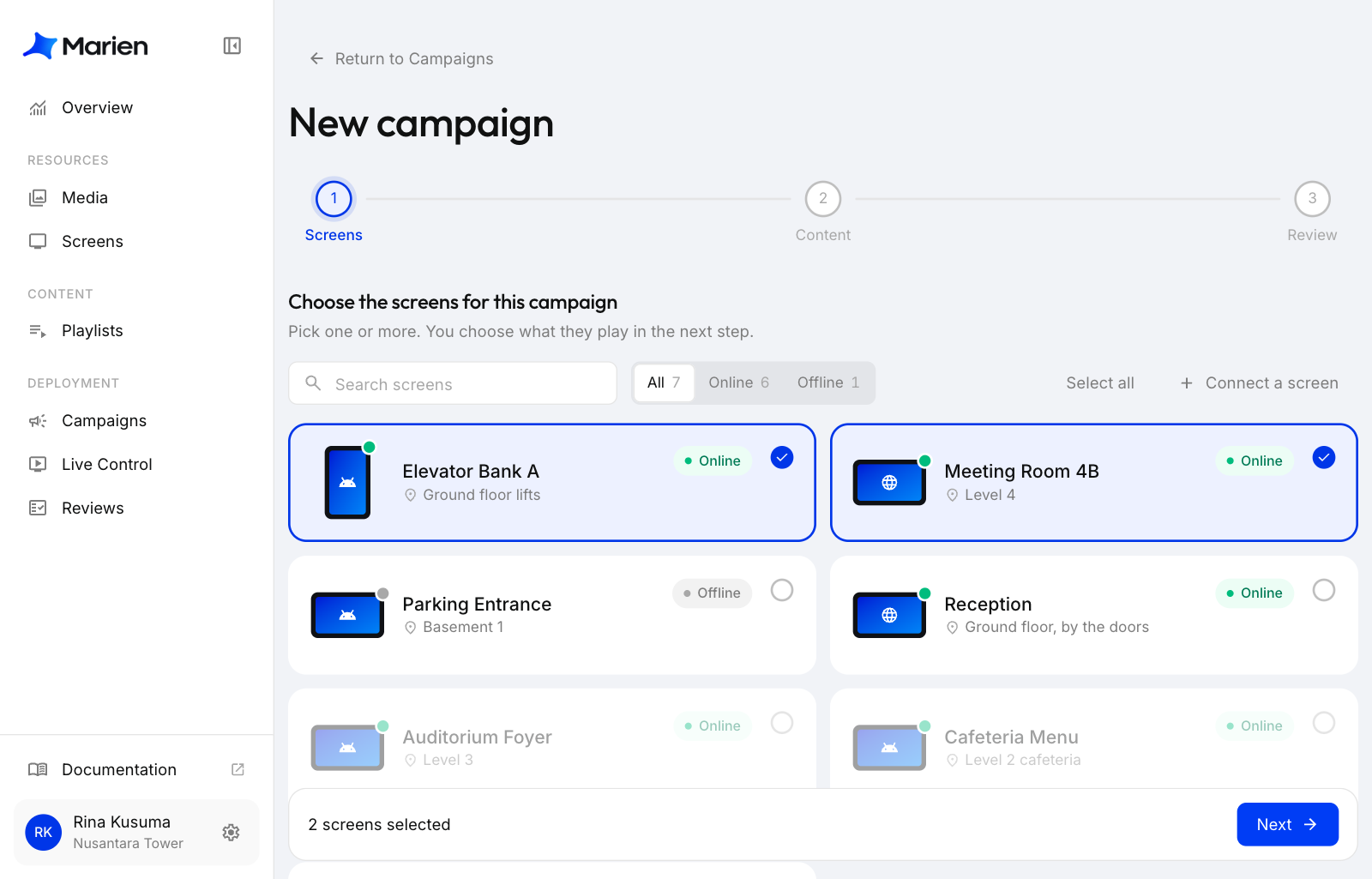
1. In Marien CMS, open Campaigns and click New campaign. Pick the screens, then click Next.
Note
A screen can be in one campaign at a time. Greyed-out screens are already in one: change that campaign instead.
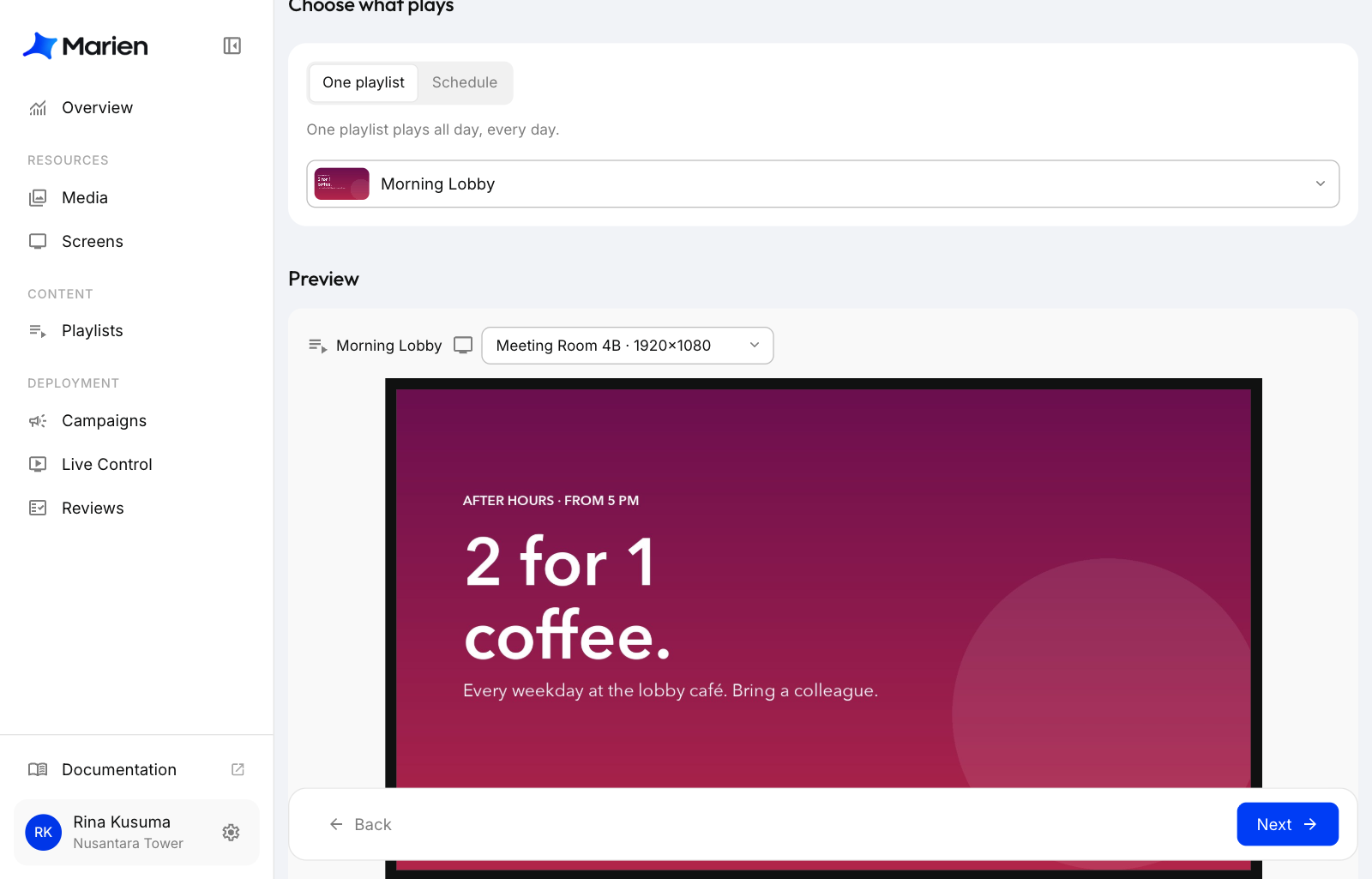
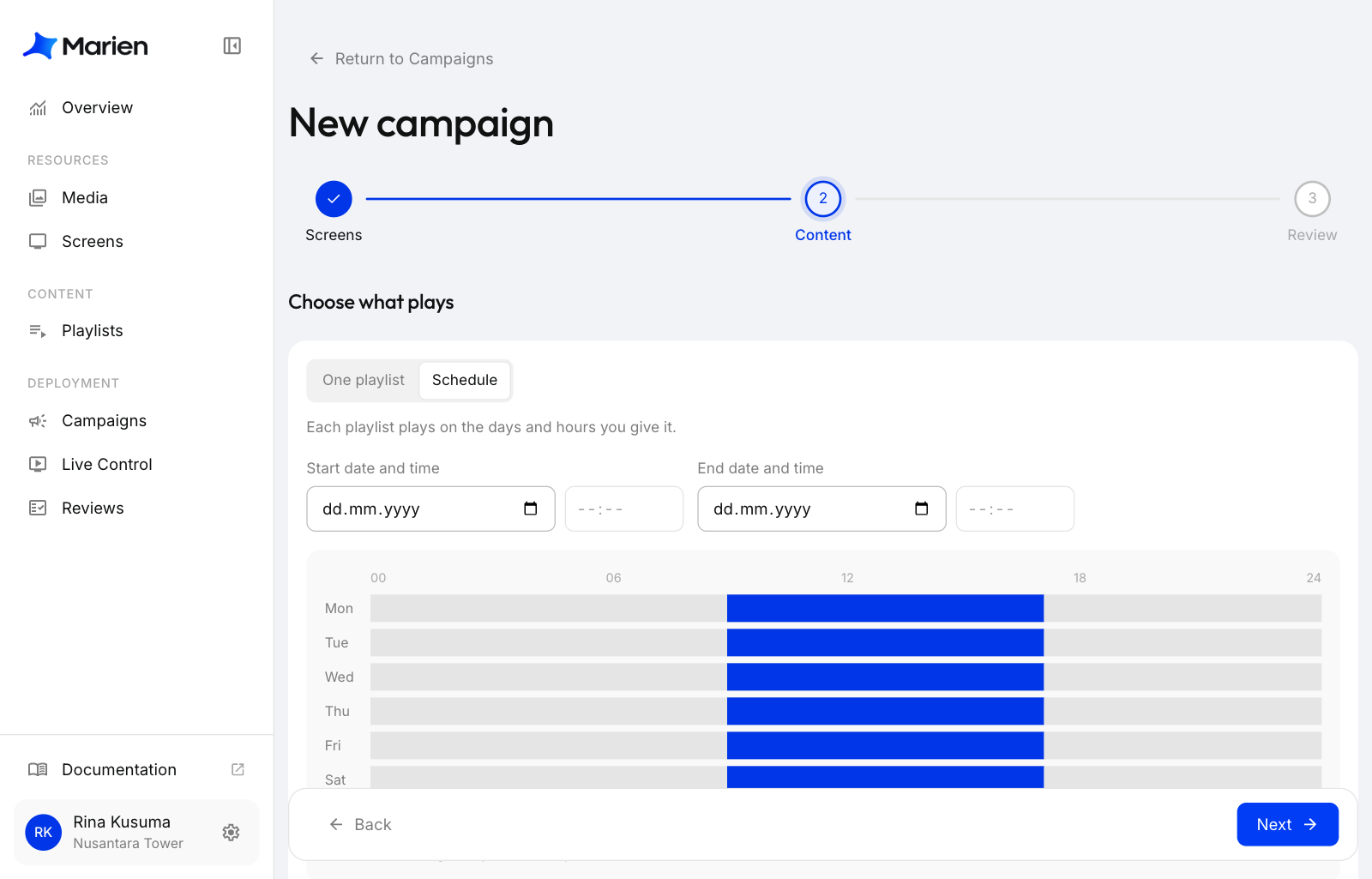
2. Choose what plays:
- One playlist: pick one playlist to play all day, every day.
- Schedule: add a playlist per time slot (hours and days), with optional start and end dates.
Click Next.
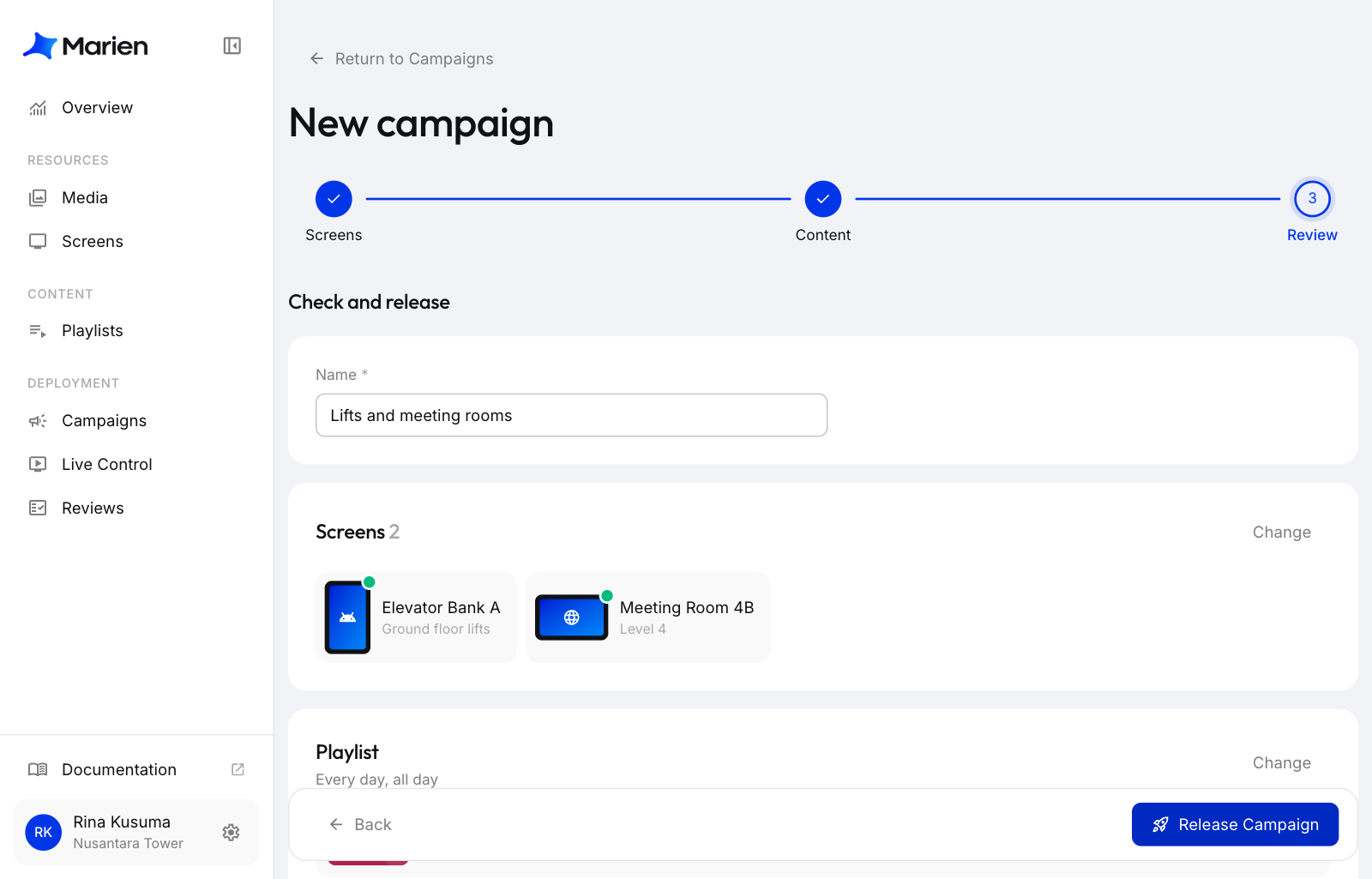
3. Name the campaign, check it, and click Release Campaign, then Release Campaign again to confirm.
4. Done. The screens start playing within a few seconds.
To change it later, open it from Campaigns, edit, and click Save & Apply.
On a sub-account?
The confirm box says Send for review instead. Nothing changes on the screens until the owner approves it. See How Reviews Work.