Set Up Your Device
Pick a player. Both end on a pairing code; then connect the screen.
| For | Install | |
|---|---|---|
| Web player | Smart TVs (Samsung, LG), any browser | Nothing |
| Android player | Android TV boxes, sticks, tablets | The app. Adds silent updates, screen off on schedule, lock-down. |
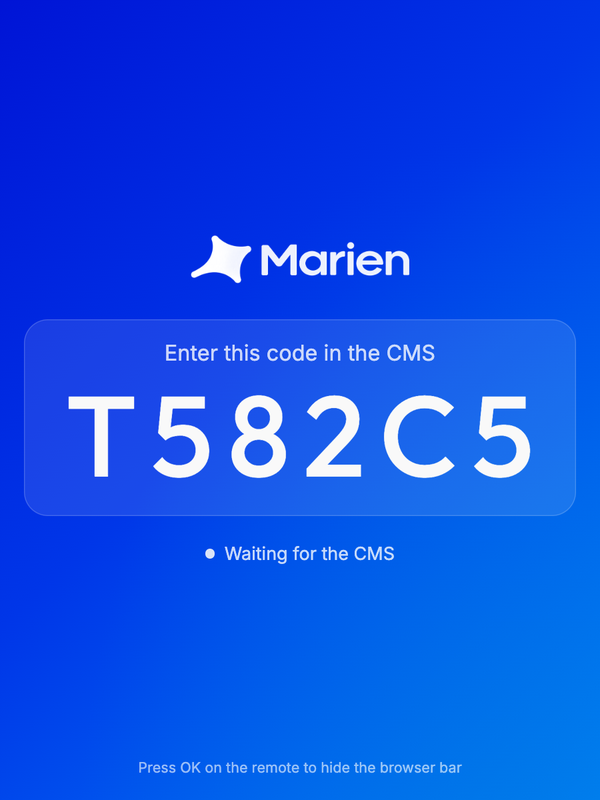
Web player
- Open https://player.marien.co.id in the TV's browser.
- Press OK on the remote once to hide the browser bar.
- Set that address as the browser's home page, and turn off the TV's screensaver.
Note
Videos stay muted until you allow autoplay with sound in the browser's settings.
Android player
- On the device: open the Play Store → profile icon → Play Protect → gear → turn off Scan apps with Play Protect.
- Install the app. Either:
- On the device: open Player Releases in its browser, tap Download, open the file, allow unknown sources.
- From a computer (USB debugging on):
curl -L -o marien-player.apk https://api.marien.co.id/player/download
adb install -r marien-player.apk
- Open Marien Player. It shows a pairing code.
Lock it down (recommended)
Device Owner mode stops anyone leaving the app, and enables silent updates and switching the screen off on a schedule.
- Factory reset the device. During setup, don't sign in to any account.
- Turn on Developer options (tap Build number 7 times) and USB debugging.
- From a computer:
Expect
curl -L -o marien-player.apk https://api.marien.co.id/player/download adb install -r marien-player.apk adb shell dpm set-device-owner \ com.fortu.player/com.fortu.player.kiosk.DeviceAdminReceiverSuccess: Device owner set. An error about accounts means one was added: reset and start again. - Open the app and connect the screen. Its page in Marien CMS shows Setup: Managed.
Already running without Device Owner? See Device Owner over Wi-Fi.