Connect a Screen
The screen must be showing a pairing code. See Set Up Your Device.
1. In Marien CMS, open Screens and click Connect a screen.
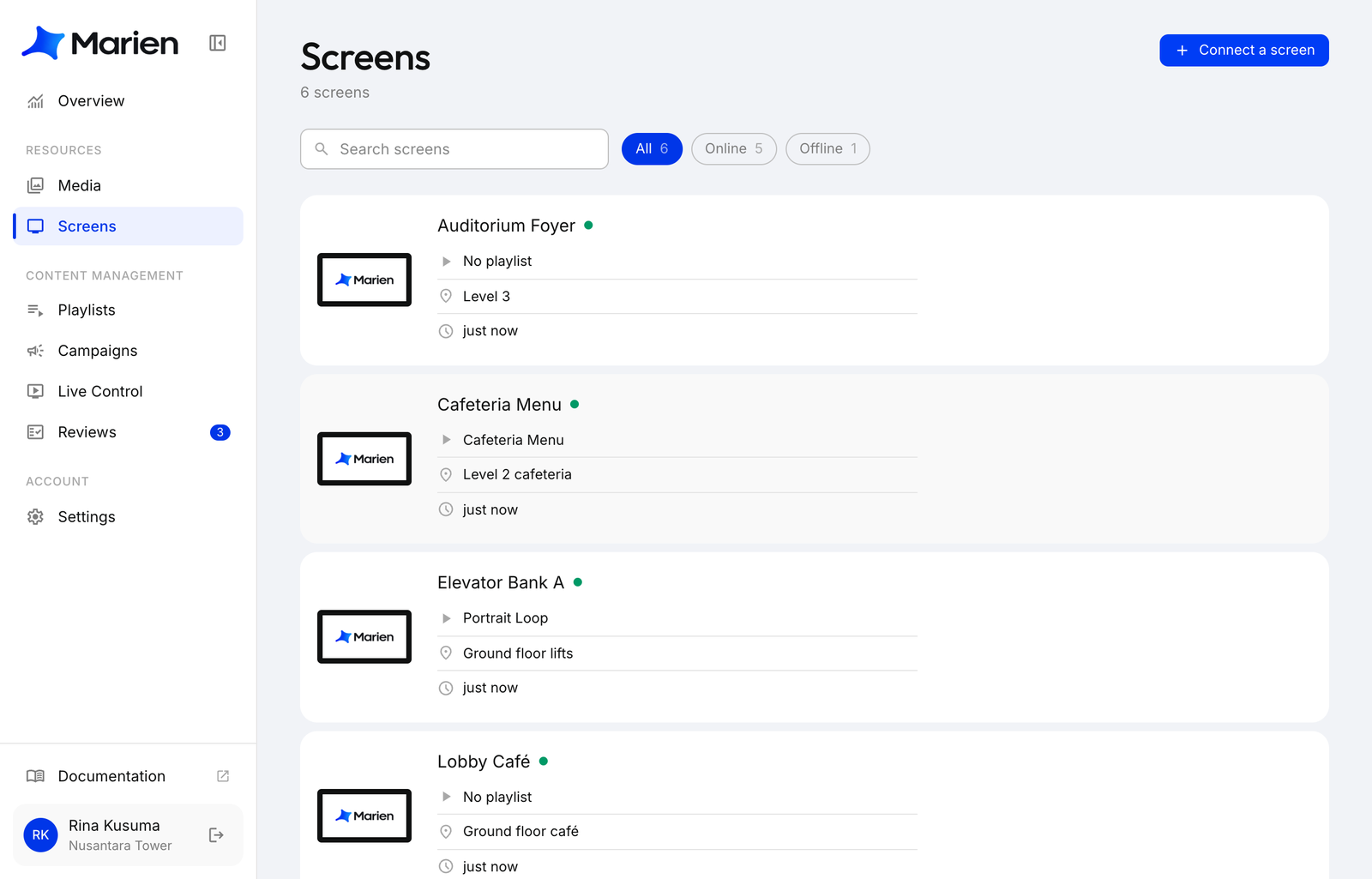
2. Type the code, a name and (optionally) a location. Click Connect.
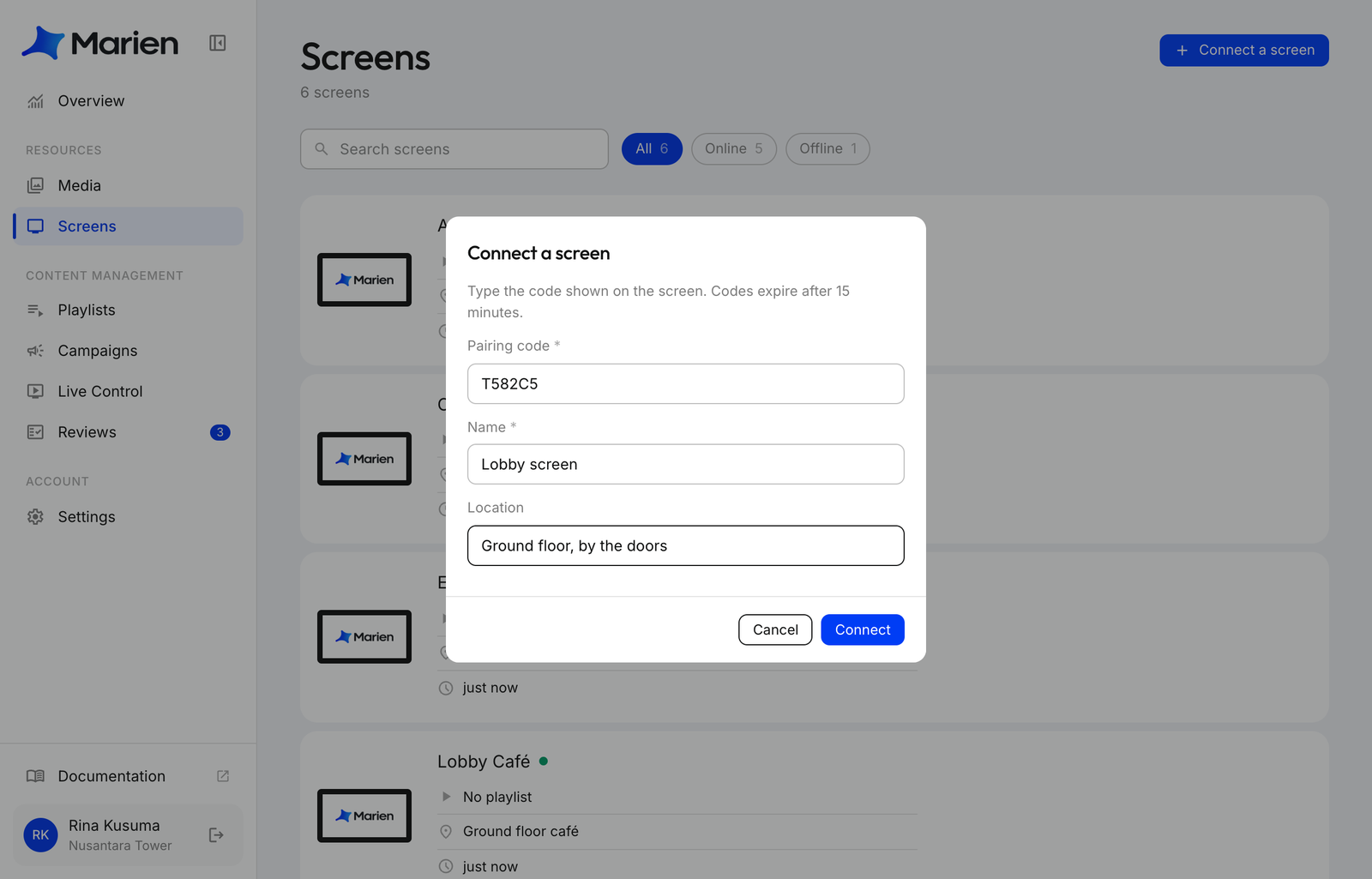
3. Pick how the screen is mounted, then click Done. Choose the option that puts the top of the picture at the top of the panel. If the screen could tell by itself, it's already picked.
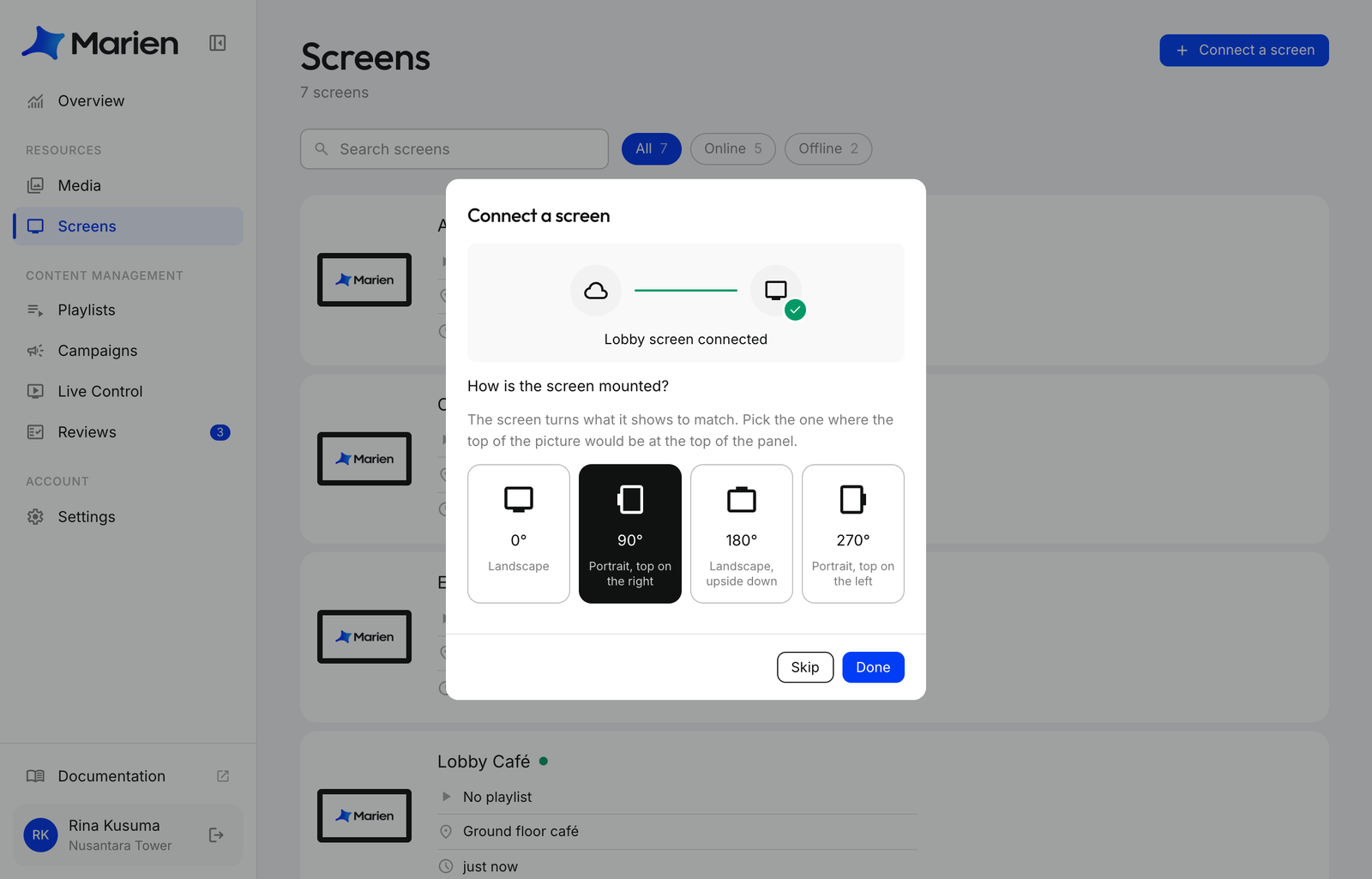
4. Done. To play something, put a playlist on the screen from Campaigns.
Tip
Codes expire after 15 minutes; the screen shows a new one by itself. Orientation can be changed later under the screen's Settings.
Troubleshooting
| Problem | Fix |
|---|---|
| Black screen, no code | Check power. A screen that isn't connected always shows a code. |
| Code not accepted | Open diagnostics (hold the top-left corner, or tap it 5 times) and check the api line reads api.marien.co.id. |
| Status says Offline | It hasn't checked in for 15 minutes. Check its internet, or click Probe on its page. |
| Need to reach Android | Diagnostics → Leave player. Enter the app lock PIN if one is set. |