Add a Sub-account
A sub-account is a login for someone on your team: a staff member, a branch manager, an agency. They get their own username and password, and they only see the screens you choose. This way you don't have to share your own password.
Only the owner of the account can add sub-accounts.
Create a sub-account
1. In Marien CMS, click the gear icon next to your name at the bottom left to open Settings. It opens on your Profile.
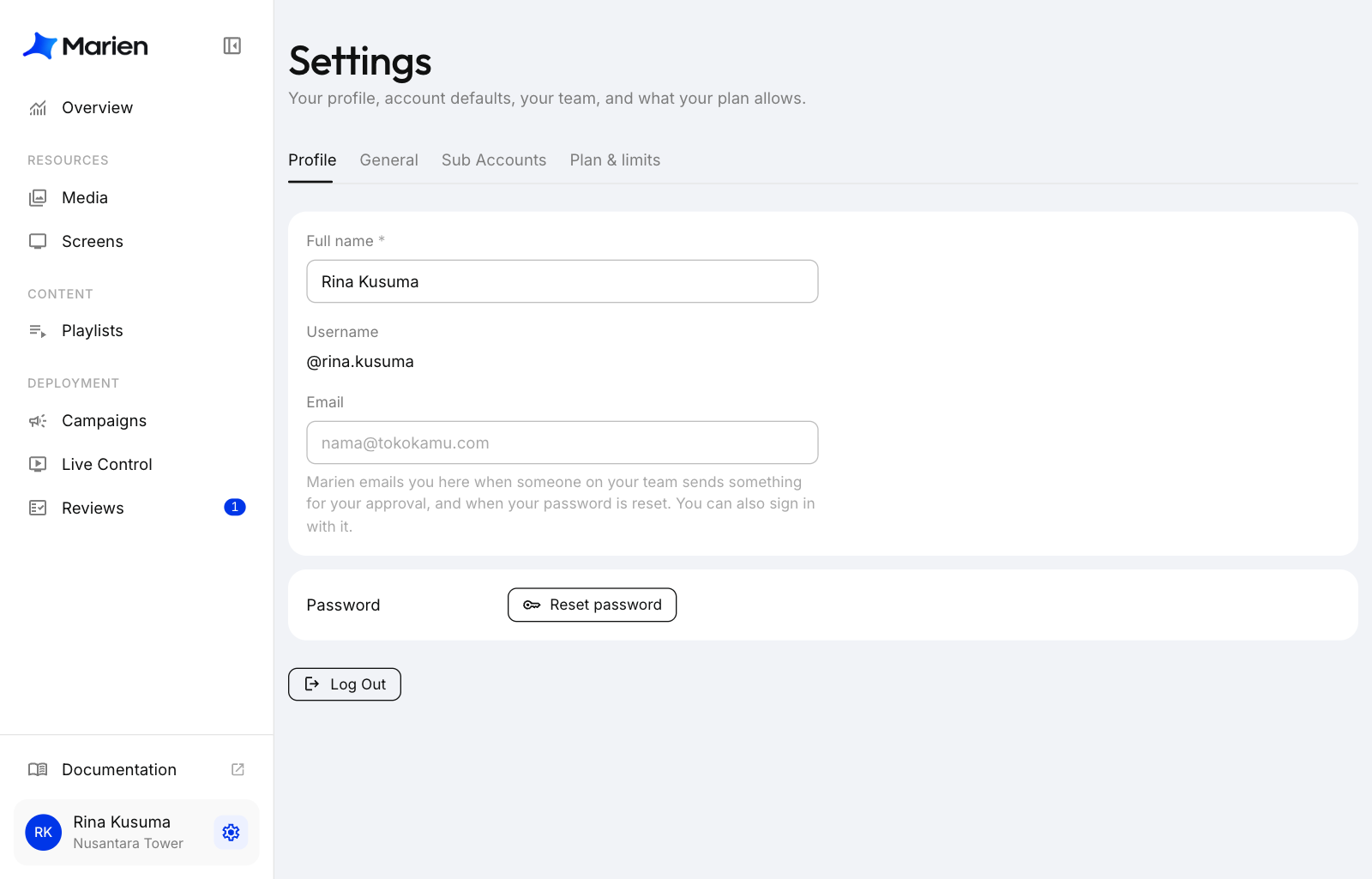
2. Open the Sub Accounts tab. You'll see everyone who can sign in to your account, with their role and the screens they can reach. Click Add sub account.
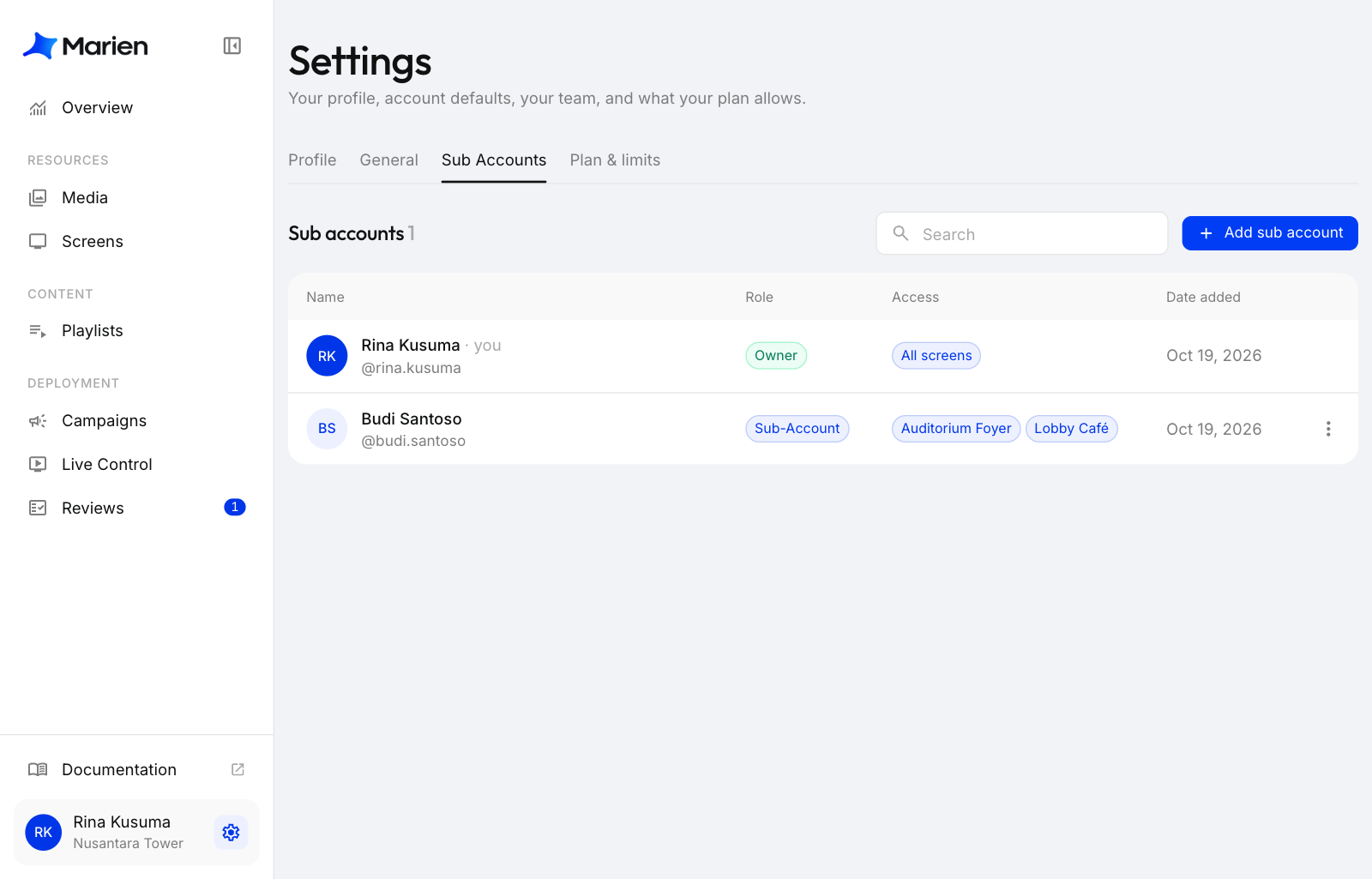
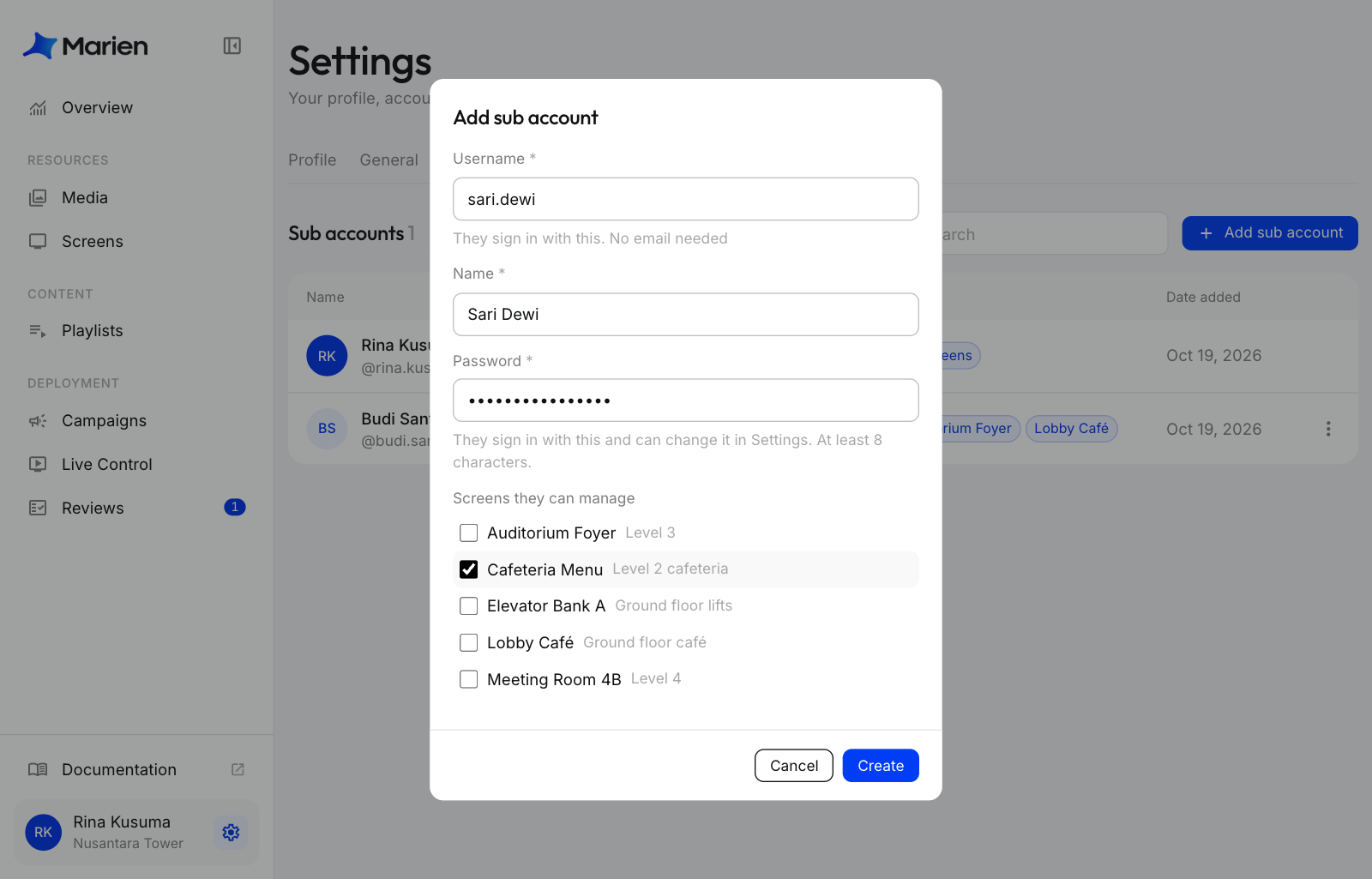
3. Fill in the form:
- Username: what they type to sign in. No email address is needed.
- Name: how their name shows in Marien.
- Password: at least 8 characters. They can change it later.
- Screens they can manage: tick the screens they may work with.
Click Create.
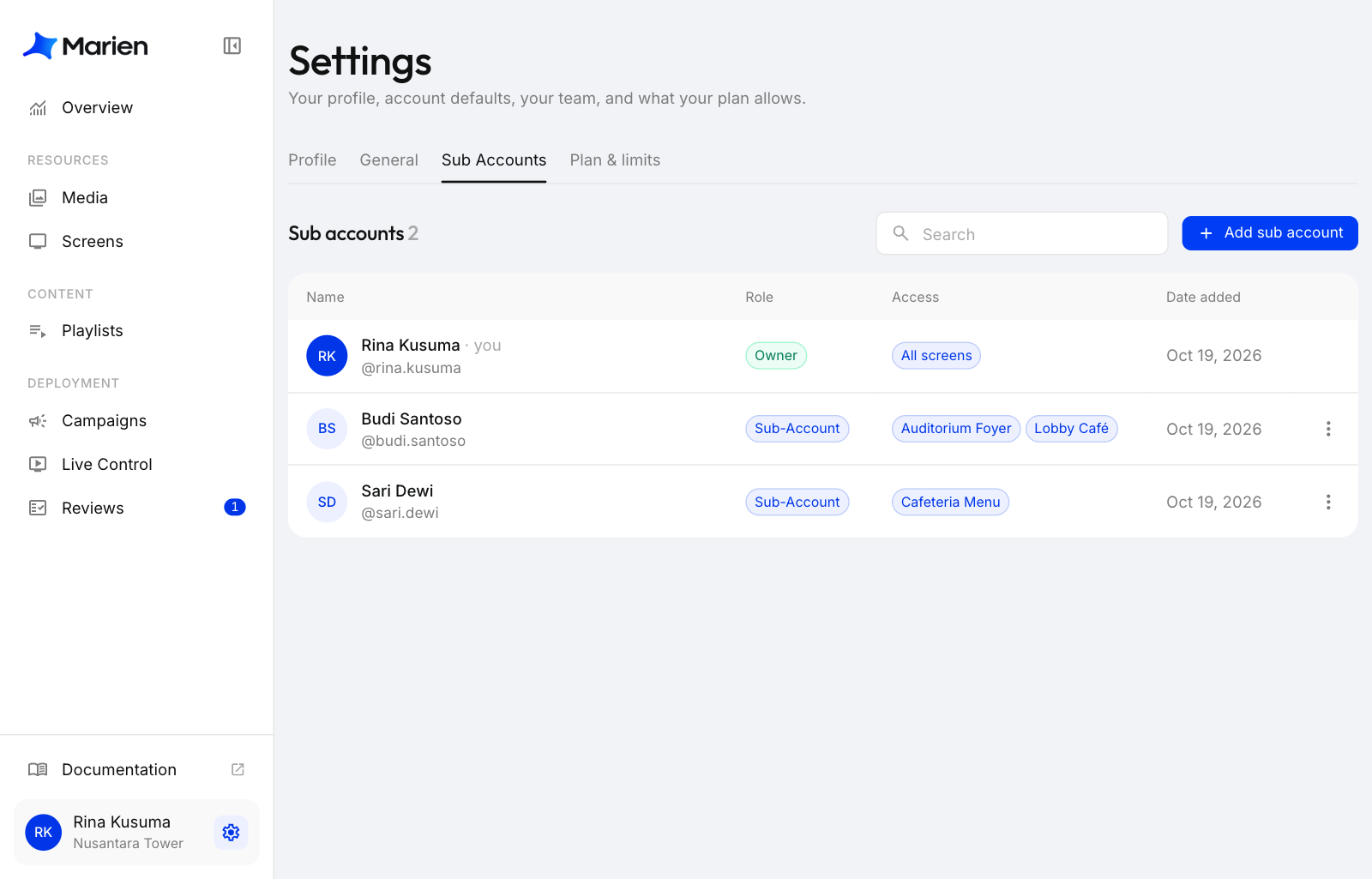
4. Done. The new person appears in the list as a Sub-Account, with the screens they can reach. Click those screens to change them.
5. Send them their username and password, and the address to sign in: app.marien.co.id. They can change their password under Settings, Profile, then Reset password.
Warning
Pass the password on in a safe way, not in a public group chat. Ask them to change it the first time they sign in.
Manage a sub-account later
Click the three dots at the end of their row.
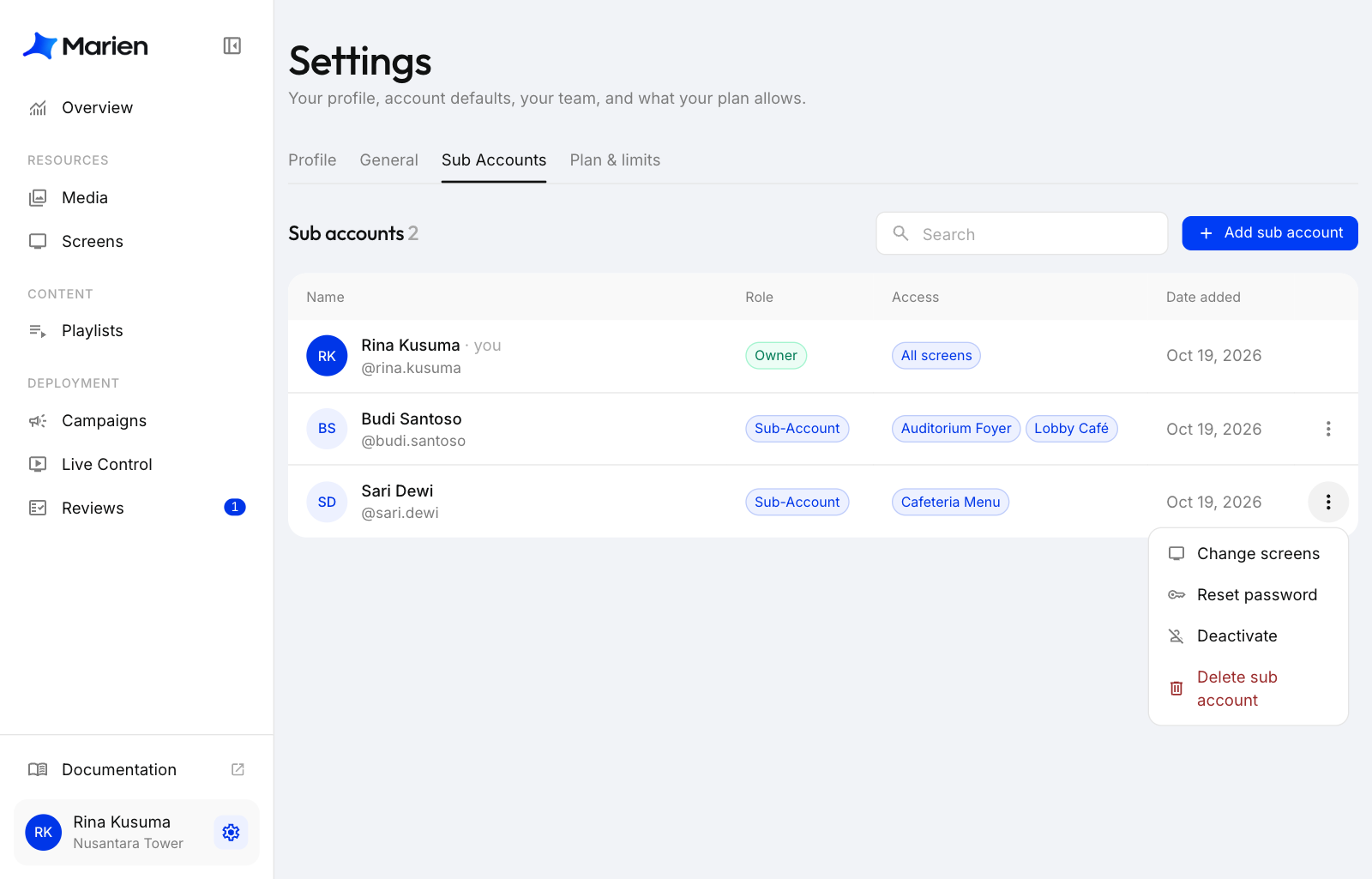
- Change screens: choose which screens they can work with.
- Reset password: set a new password for them (for example when they forget it). They're signed out everywhere and must sign in again with the new one.
- Deactivate: they can't sign in until you click Reactivate. Nothing they made is deleted.
- Delete sub account: they lose access straight away. The media and playlists they created stay in your account.
Note
A sub-account only sees the screens you gave them, and they can't see Sub Accounts. When they change something that would be shown on a screen, you approve it first (see How Reviews Work). Everything else they do is saved right away.