Live Control
Live Control is a remote control for your screens. Pick a screen, tap one of its scenes, and that scene shows on the screen right now. It's handy for last-minute news, a special offer, or showing a customer one particular slide.
It works on any screen that is playing a playlist. See Create a Campaign if a screen doesn't have one yet.
Take control of a screen
1. In Marien CMS, open Live Control. You'll see a card for each of your screens, with its name, whether it's Online or Offline, and the playlist it is playing now.
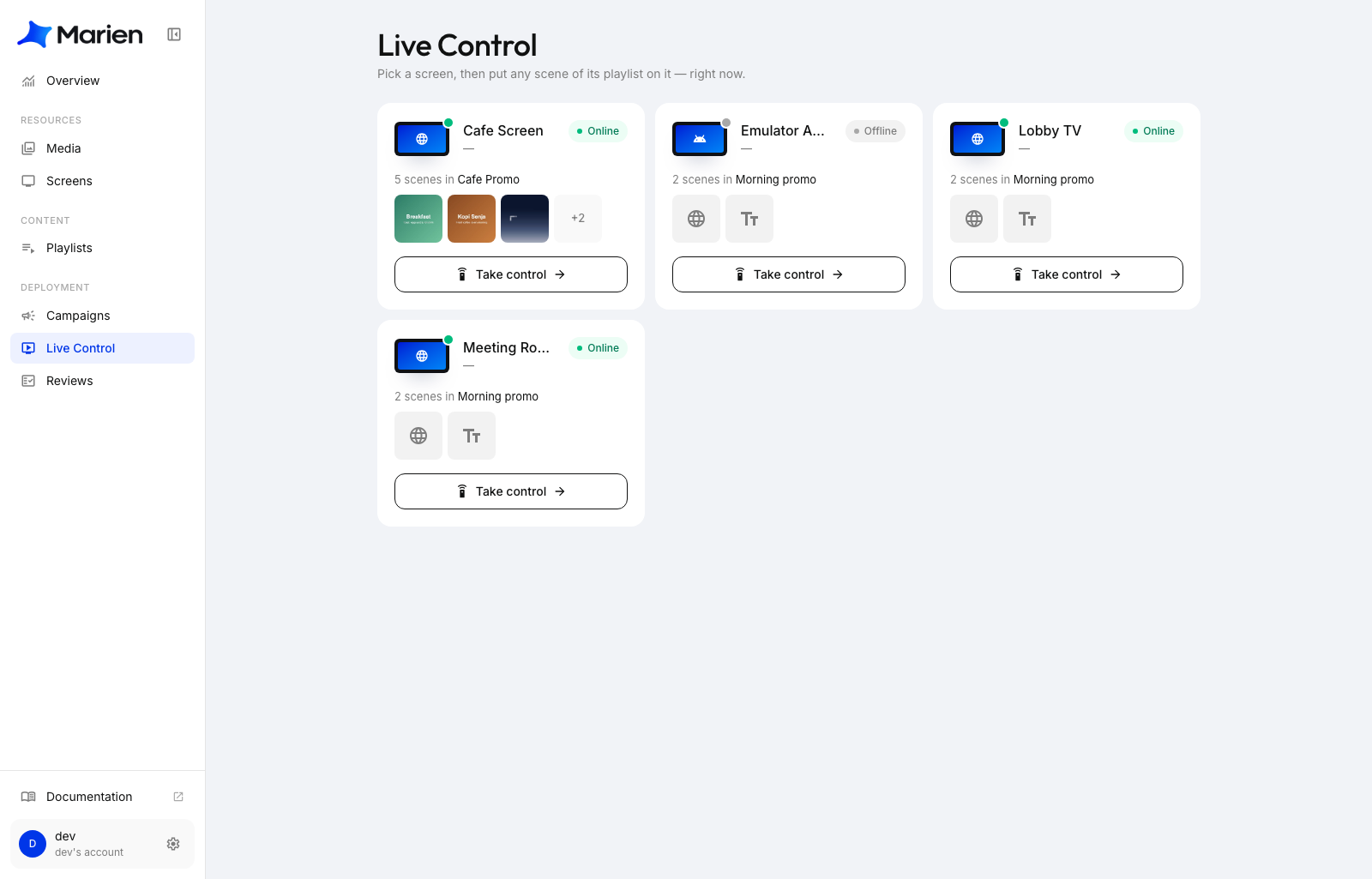
2. Click Take control on the screen you want. If the card says Assign a playlist instead, the screen has nothing to control yet.
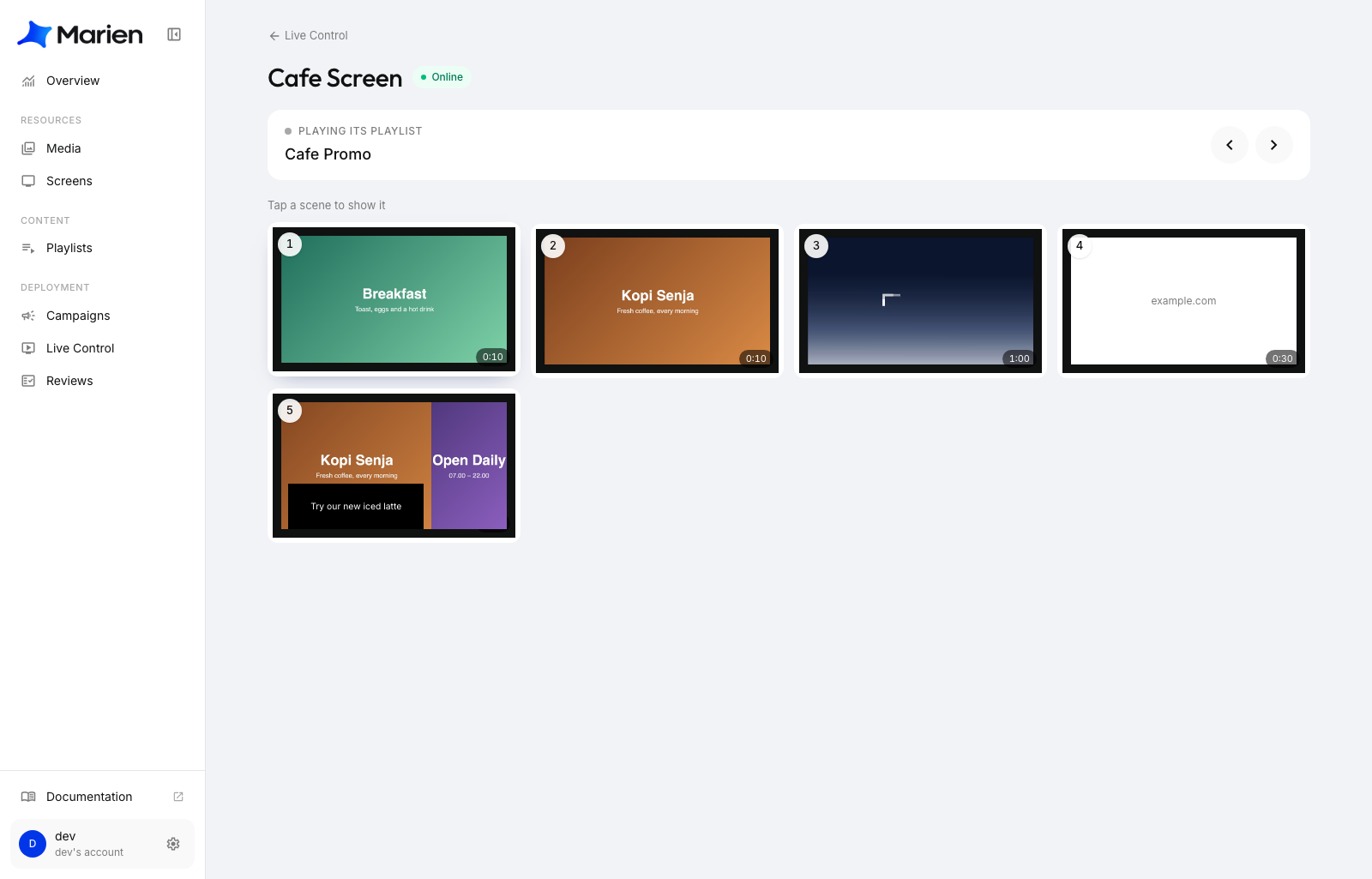
3. The remote opens. The pictures are the scenes of the playlist, numbered in the order they play. At the top, the bar says which playlist the screen is playing.
Show a scene right now
4. Tap a scene. After a moment, the screen switches to it and stays on it. The top bar turns blue and says Live, with the scene's number.
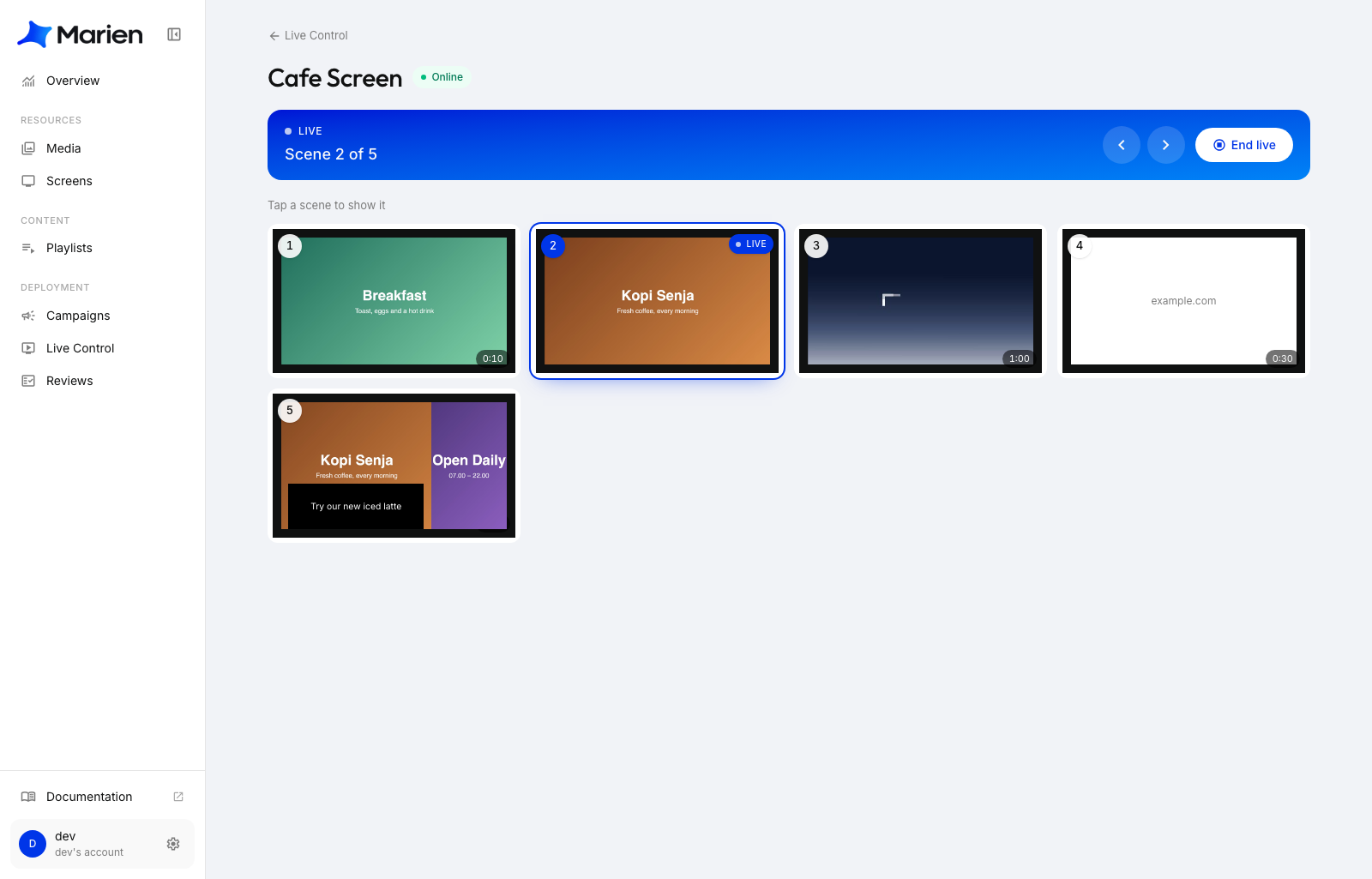
- The left and right arrows move to the previous or next scene.
- Tap another scene any time to switch to it.
Go back to normal
5. Click End live. The screen goes back to playing its playlist, as before.
Note
A live scene stays on the screen until you click End live, but never longer than 4 hours. After that the screen goes back to its playlist by itself, in case someone forgot to end it.
Tip
Need a quick message, like "Closing early today"? Make a scene for it (see Design a Scene), add it to the screen's playlist, then show it with Live Control.
Note
Scenes you've switched off in the playlist (with the switch on the right of their row) are skipped on the screen, so they don't appear in the remote either.
Warning
If a screen is Offline, the change reaches it when it connects to the internet again.