Create a Playlist
A playlist is what a screen plays, one item after another, in a loop. Each item can be a picture, a video, a website, or a scene you design yourself.
Start a playlist
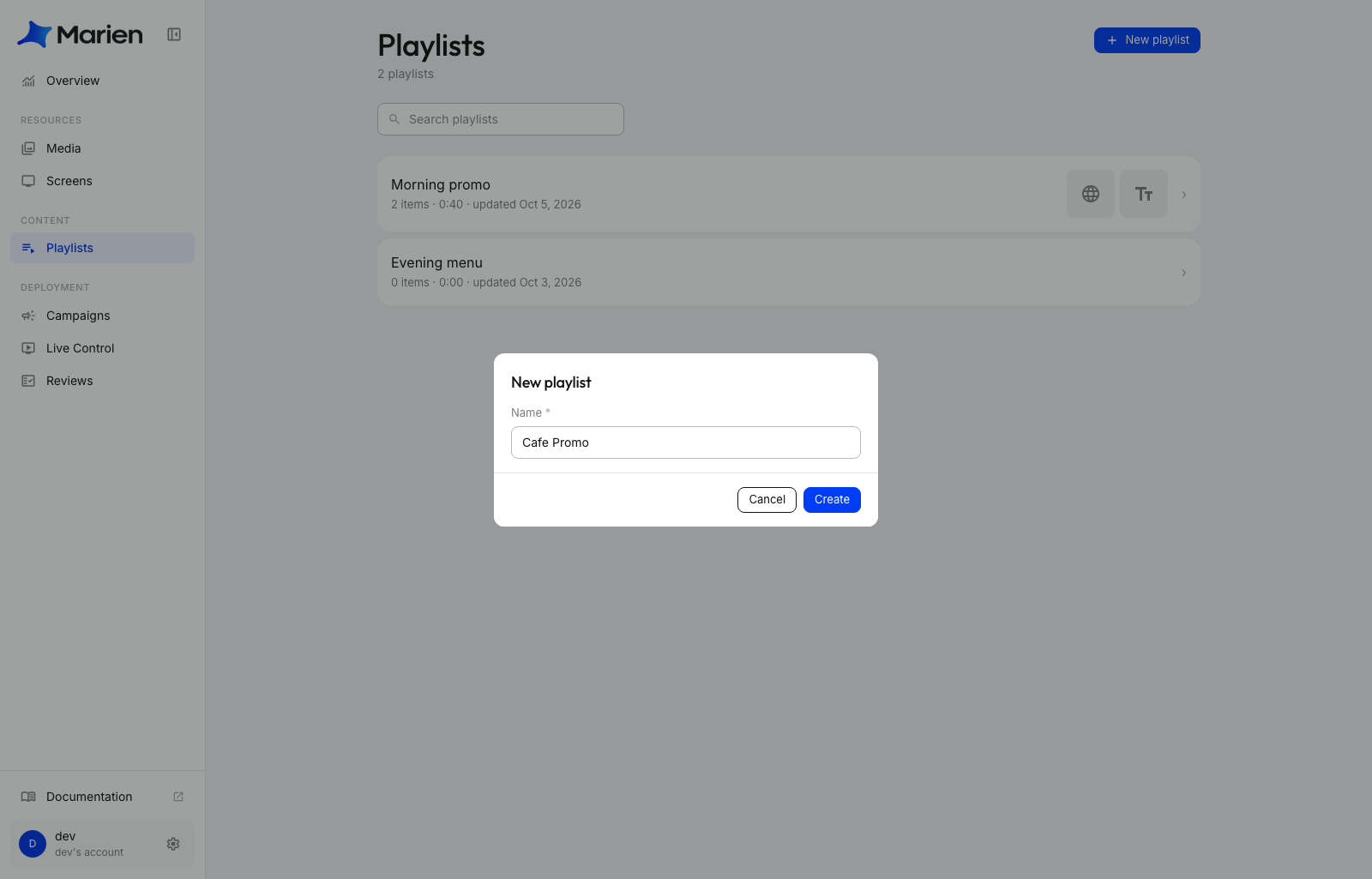
1. In Marien CMS, open Playlists and click New playlist. Give it a name and click Create.
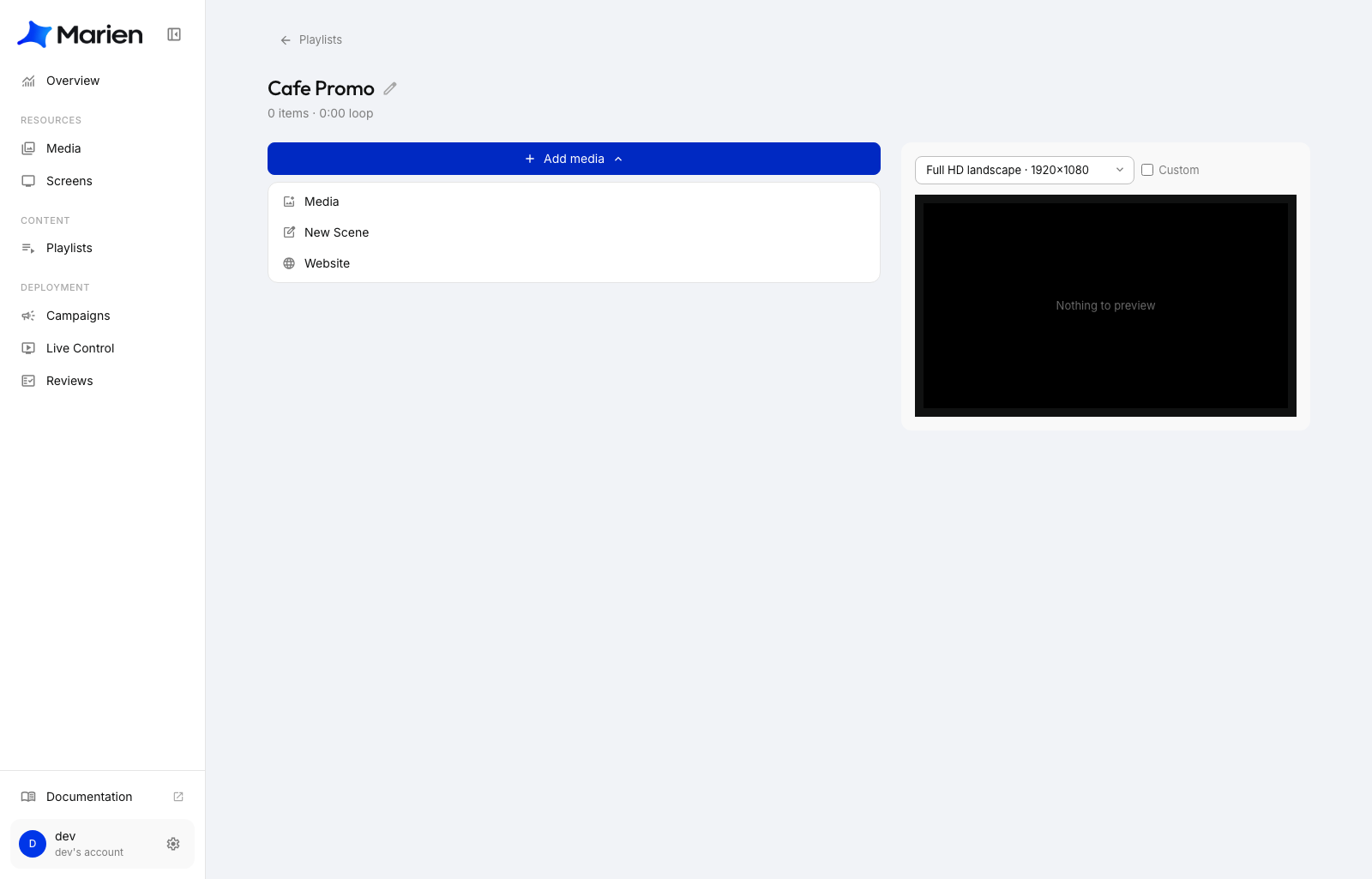
2. Click Add media. A small menu opens with three choices: Media, New Scene and Website. The next sections explain each one.
Add pictures and videos
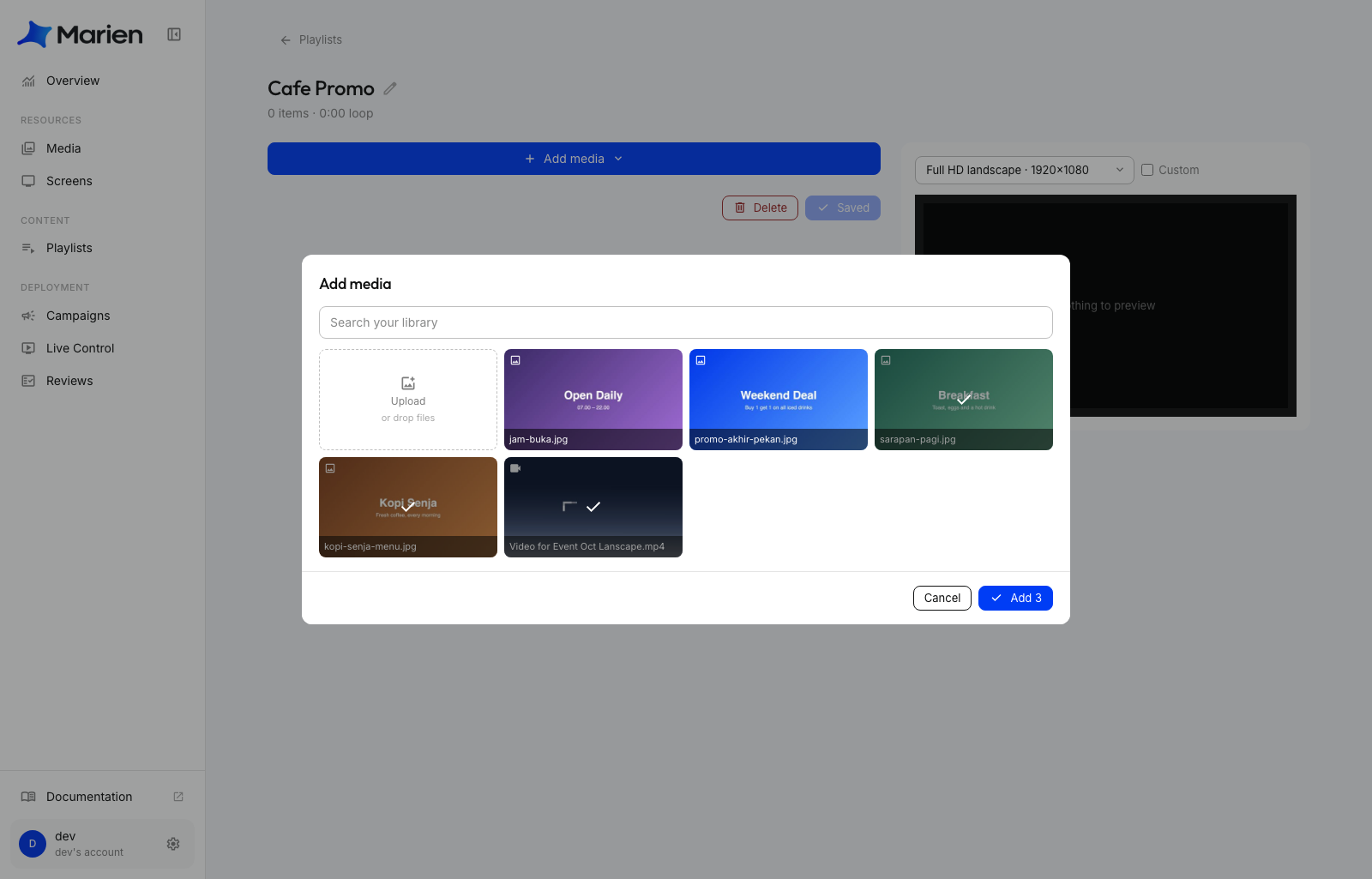
3. Choose Media. Tick the pictures and videos you want. You can pick several at once. To use a new file, click Upload (or drop the file onto the box). Then click Add.
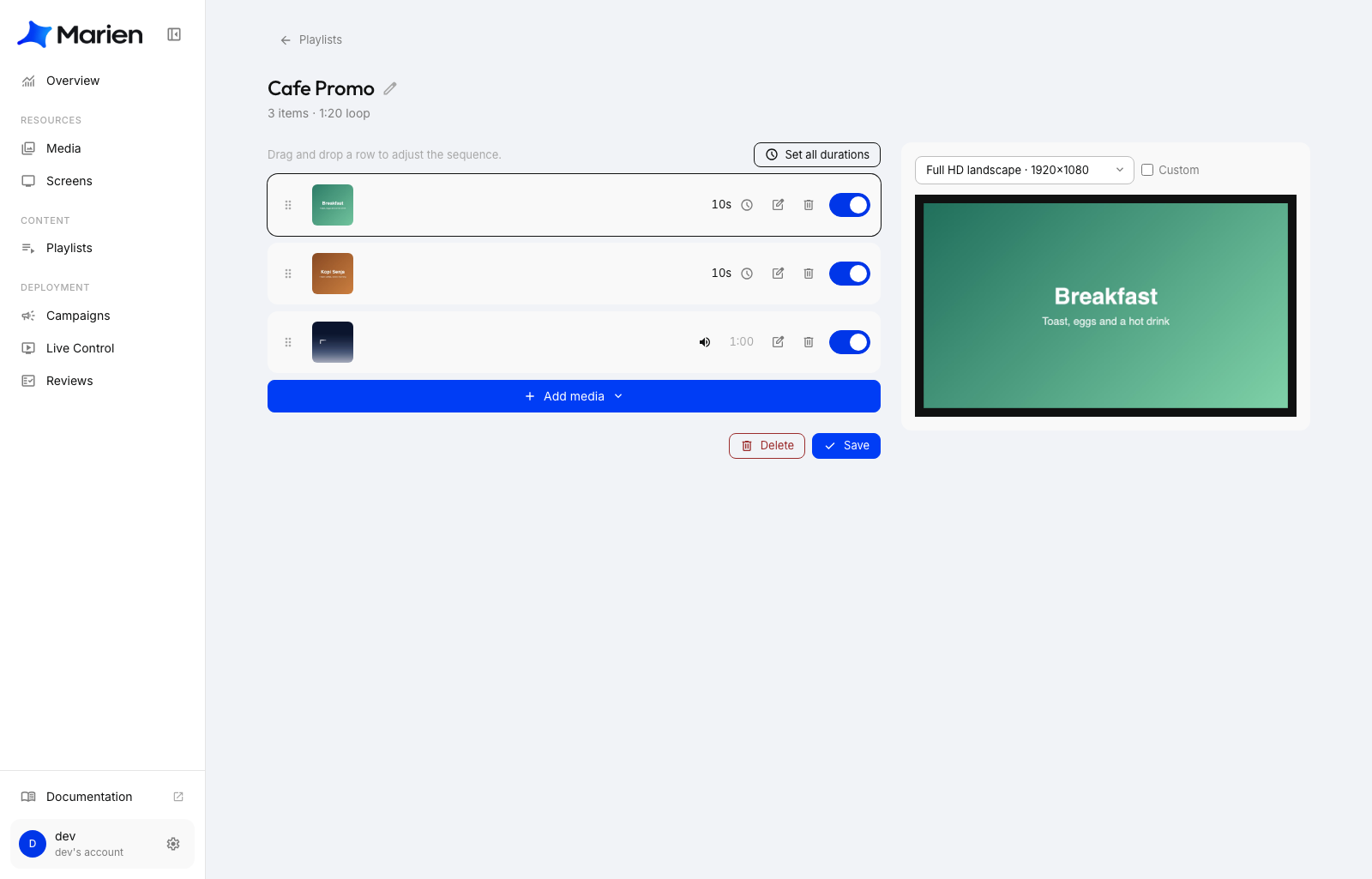
Each one becomes a row in your playlist.
Note
Pictures show for 10 seconds, and you can change that (see below). A video plays until it ends. Videos start without sound. Click the speaker icon on a video's row to turn the sound on.
Add a website
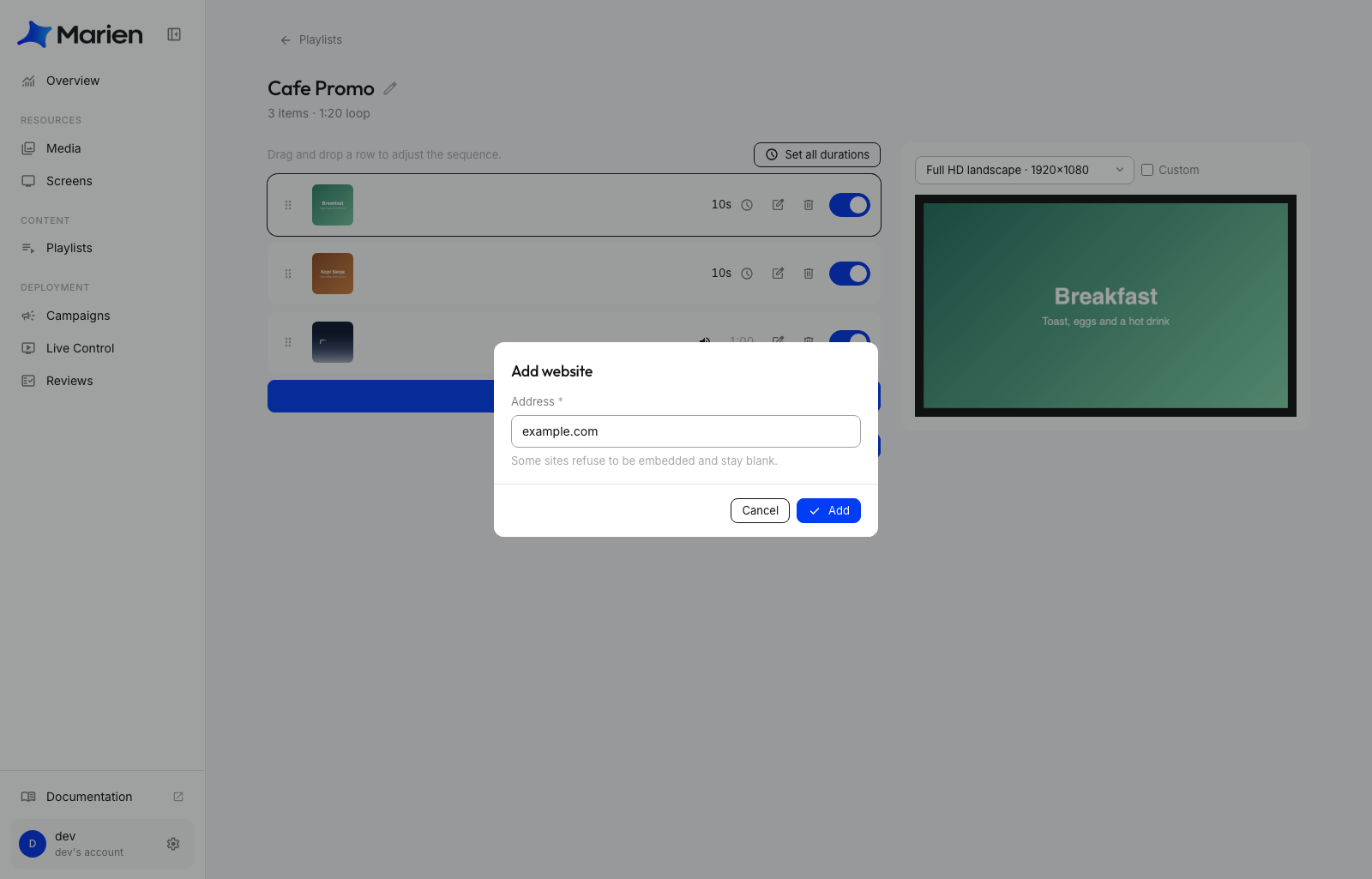
4. Click Add media, then Website. Type the address (for example example.com) and click Add.
Warning
A few websites don't allow themselves to be shown inside another page, so they stay blank. Check the preview on the right. If the site is blank there, it will be blank on the screen too.
Add a scene
5. Click Add media, then New Scene. This opens a canvas where you can put several pictures, videos, text and even the weather on one screen, a bit like Canva. It has its own guide: Design a Scene.
Arrange and save
6. Tidy up your playlist:
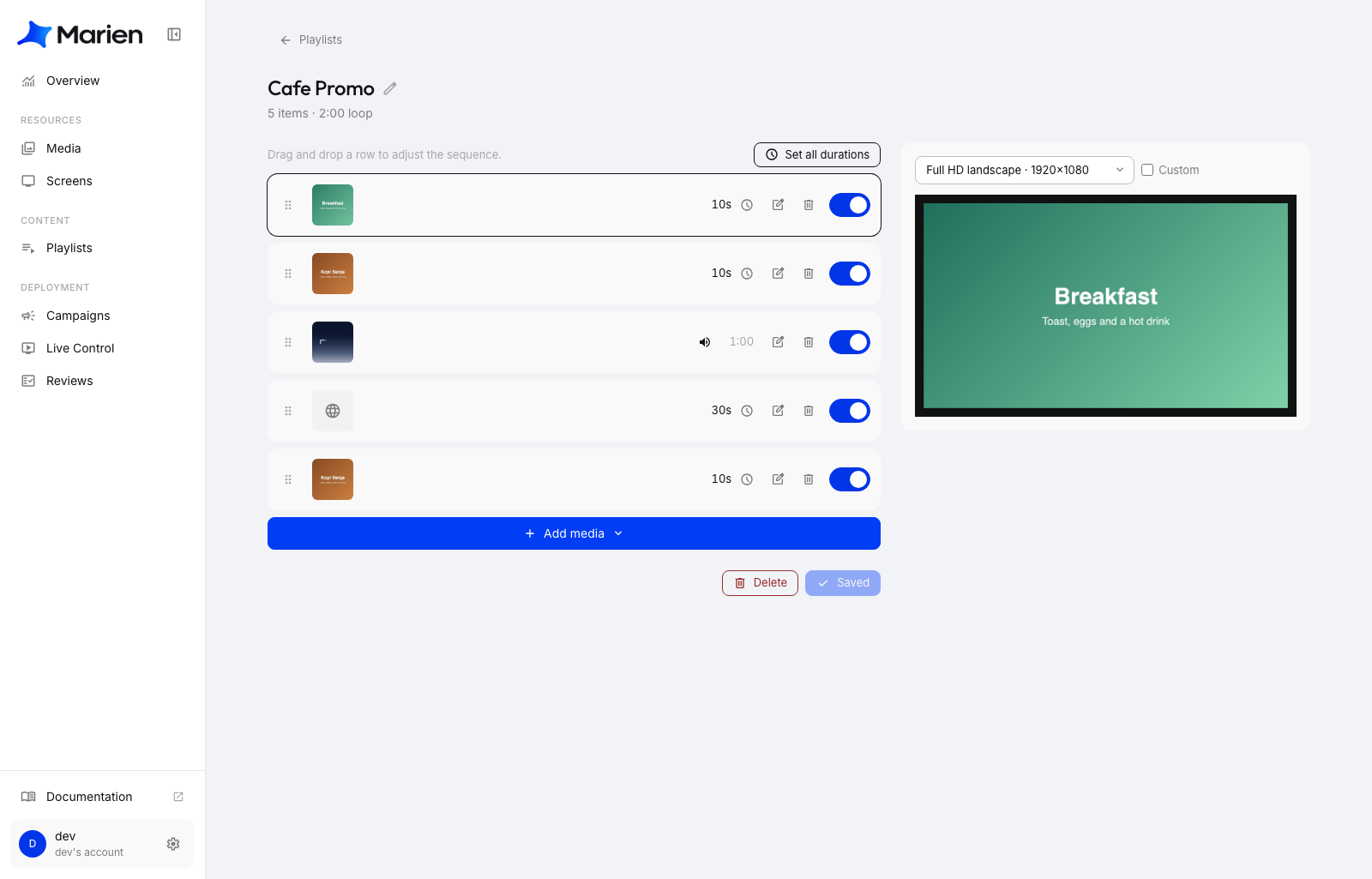
- Drag a row up or down to change the order.
- Click a row's time (for example 10s) to change how long it shows. Set all durations changes every row at once.
- Click the pencil icon to edit a scene, or the bin icon to remove an item.
- Use the switch on the right to skip an item without deleting it.
Click Save.
Tip
The preview on the right shows the playlist in your screen's shape. Pick your screen in its dropdown to check how everything fits.
Is this playlist already on a screen?
If you're the owner, Save publishes it, and the screens pick up the change within a few seconds. If you're a sub-account, your change goes to the owner to approve first. See How Reviews Work.
Next: Create a Campaign to put it on a screen.