How Reviews Work
Reviews let the owner of an account check changes before they reach the screens. When a sub-account saves something that would change what a screen shows, the change waits in Reviews. The owner looks at it, then approves or rejects it. Until then, the screens keep showing what they showed before.
Owners don't need reviews. Their changes go straight to the screens.
What needs a review?
When a sub-account does any of these, the owner has to approve it first:
- Saving a playlist that is playing on a screen
- Creating, changing or deleting a campaign
- Creating, changing or deleting a schedule
- Choosing which playlist a screen plays
Everything else is saved right away. For example uploading media, renaming something, or editing a playlist that isn't on any screen yet.
If you're a sub-account: send a change
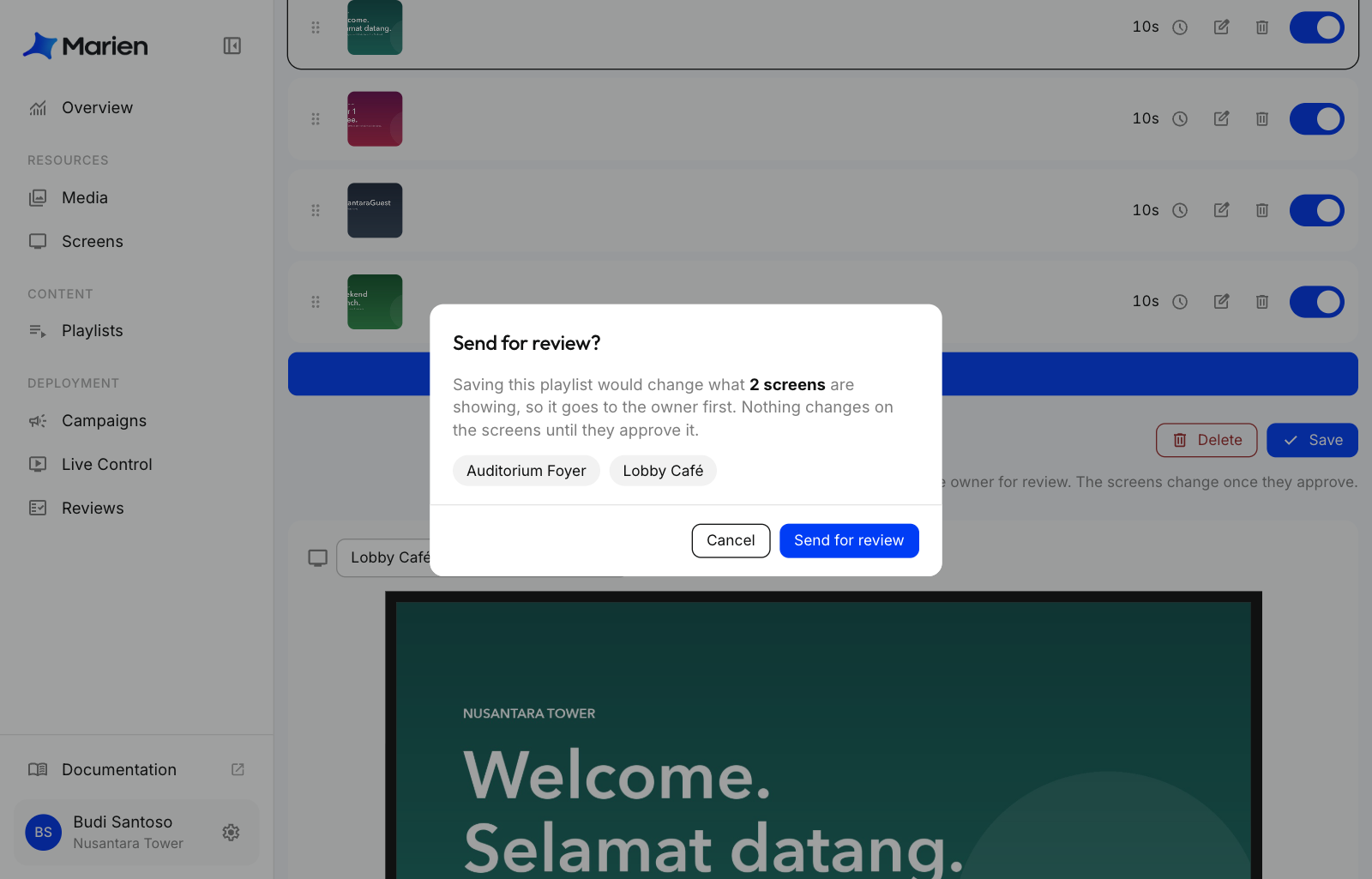
1. Edit the playlist (or campaign) and click Save. A box asks Send for review?. It lists the screens that would change. Click Send for review.
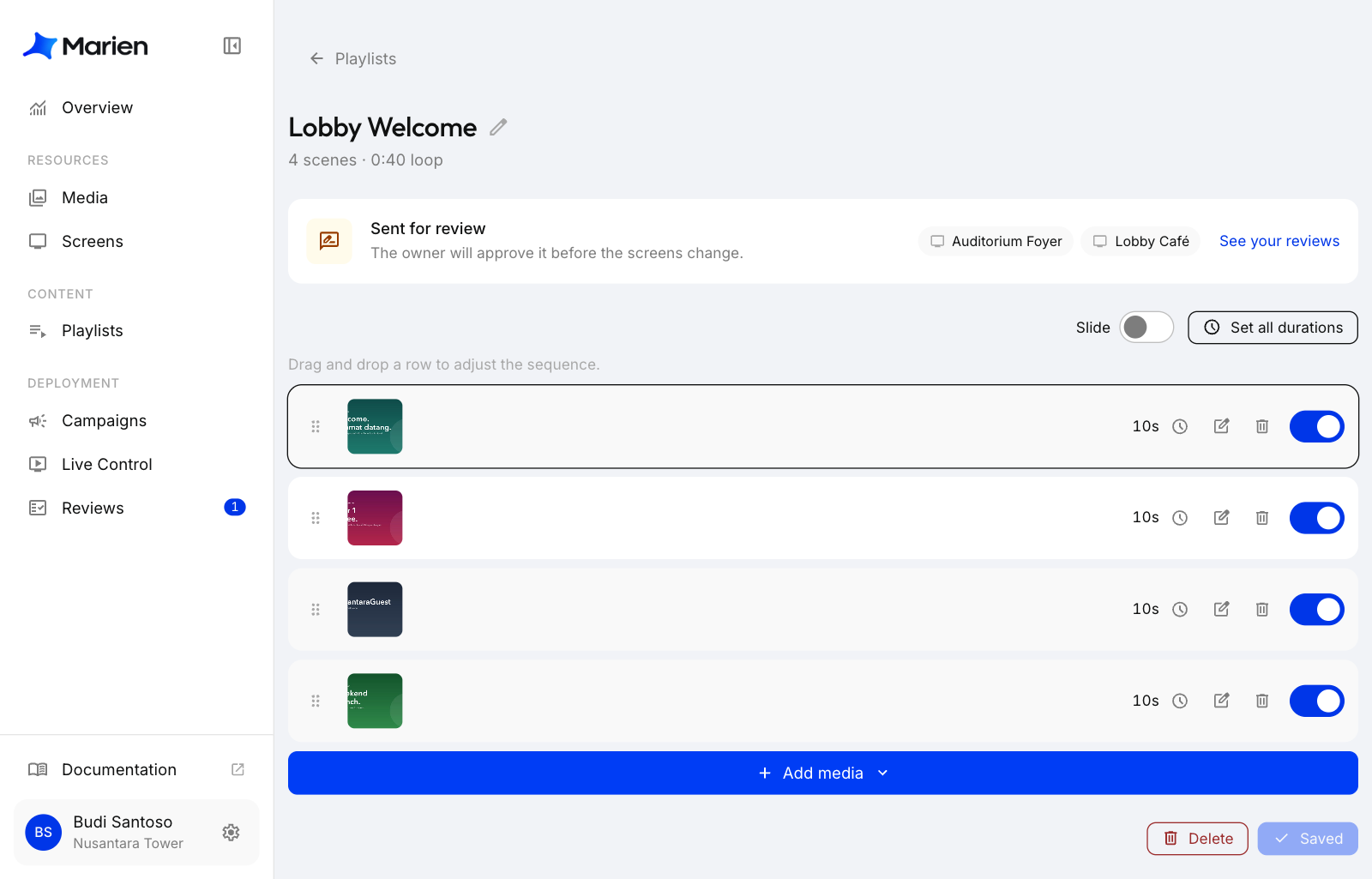
2. A message at the top says Sent for review. Nothing has changed on the screen yet.
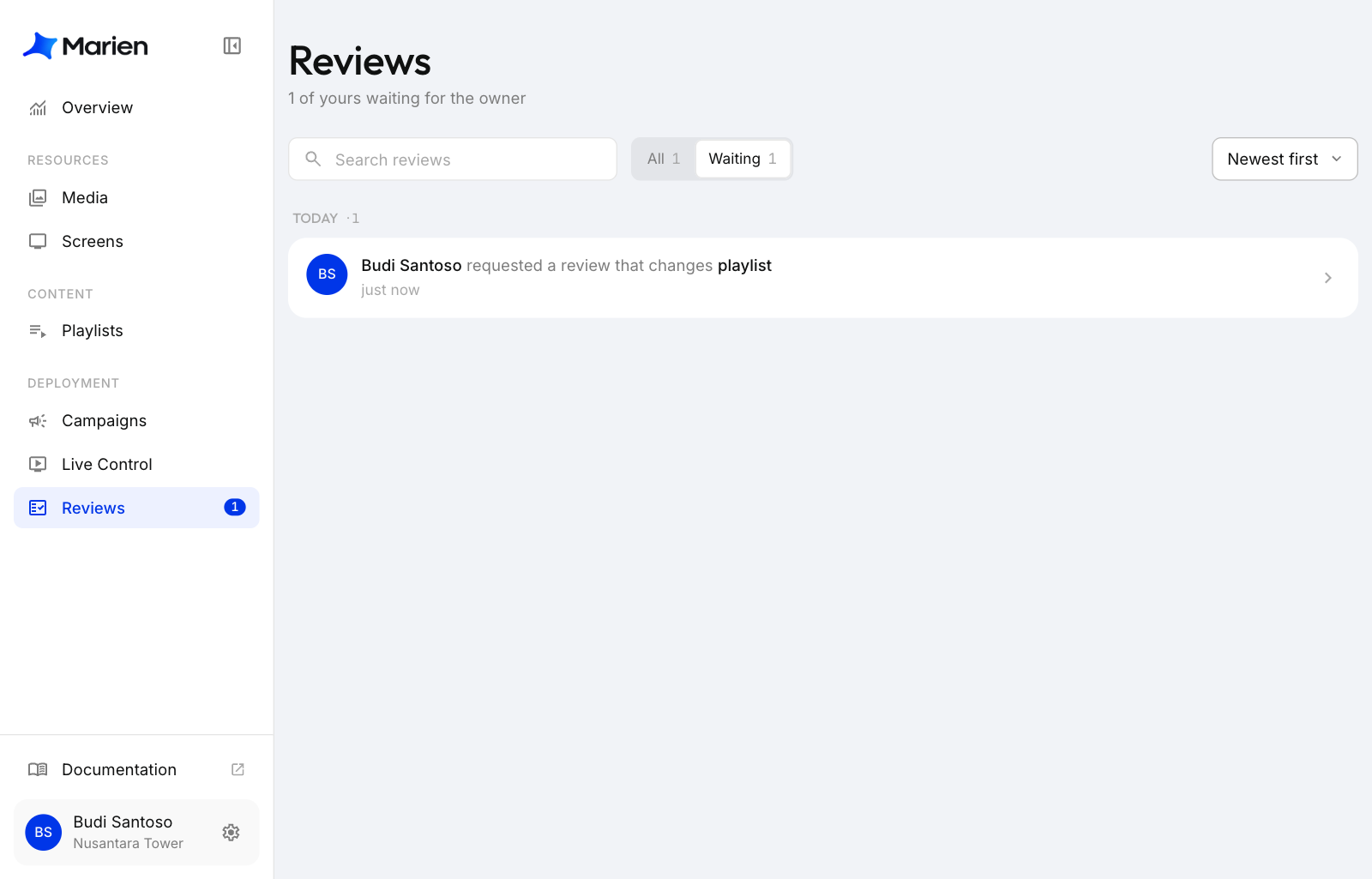
3. To follow it, open Reviews in the menu. Your change is listed under Waiting.
Tip
Changed your mind? Open the review and click Withdraw while it is still Waiting.
If you're the owner: approve or reject
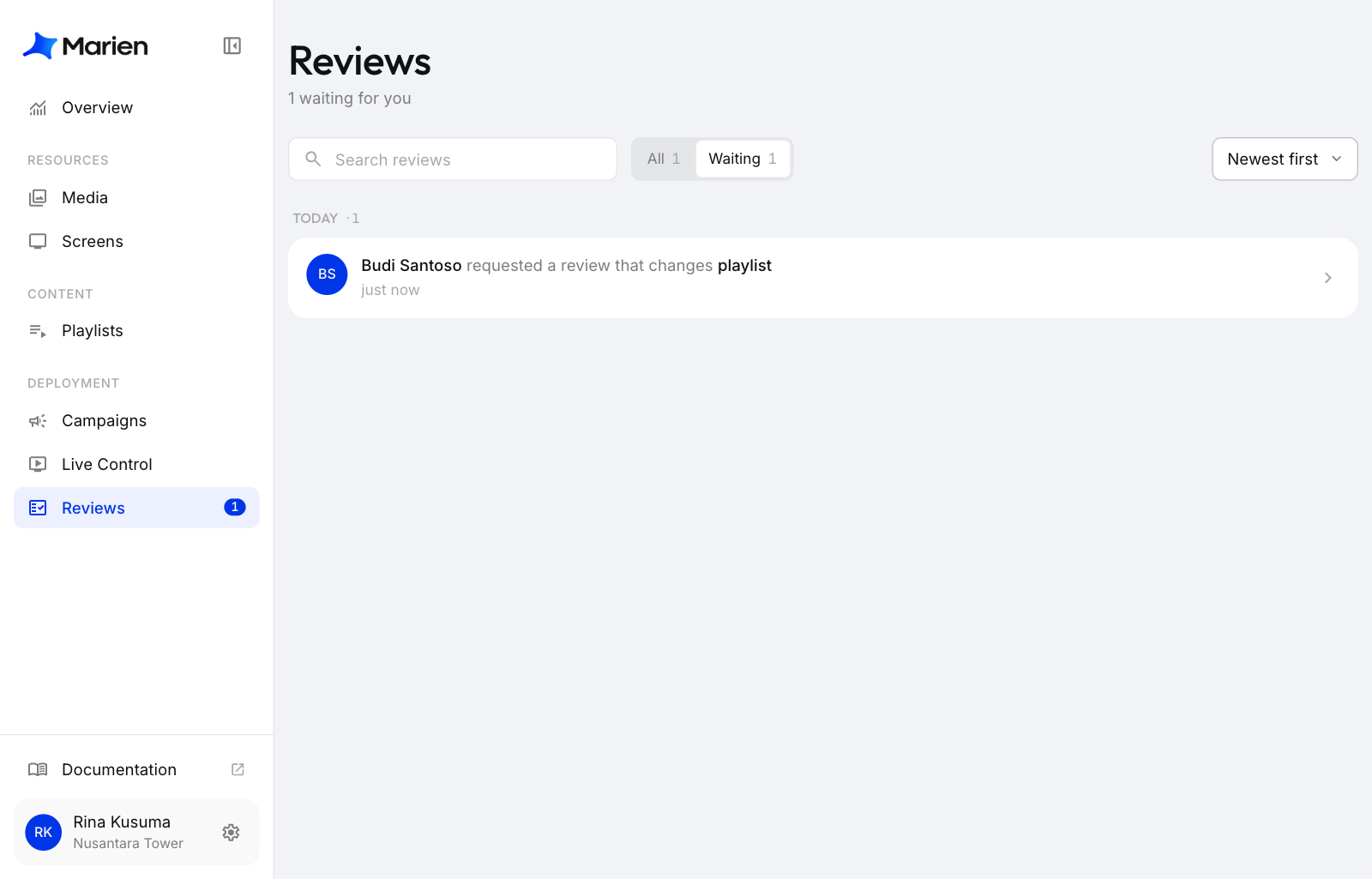
4. When a change arrives, Reviews in the menu shows a small number. Open Reviews and click the change.
5. The page shows who sent it and which screens it touches. Use the Before and After tabs to compare. Click an item to preview it in the shape of the screen.
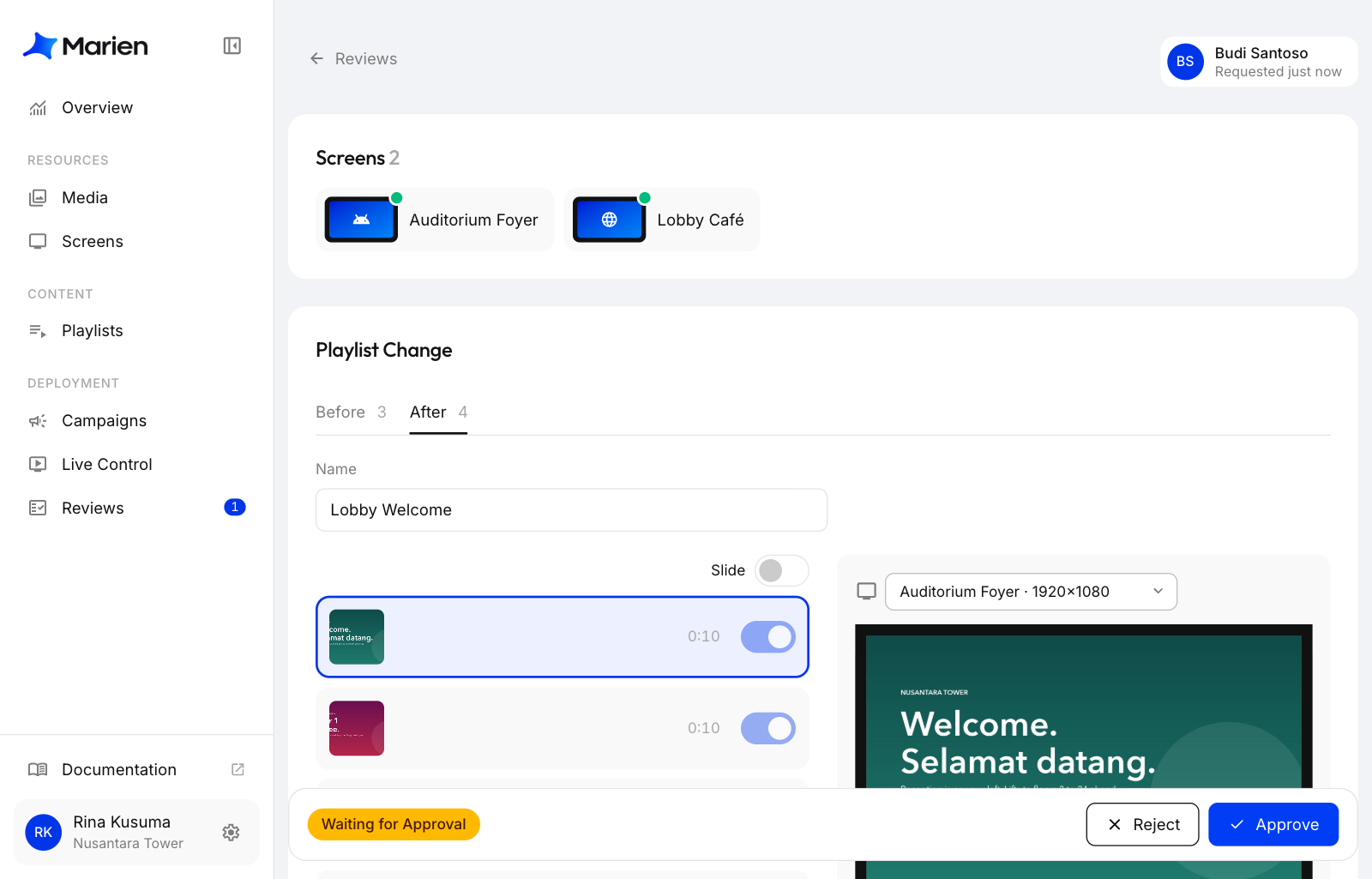
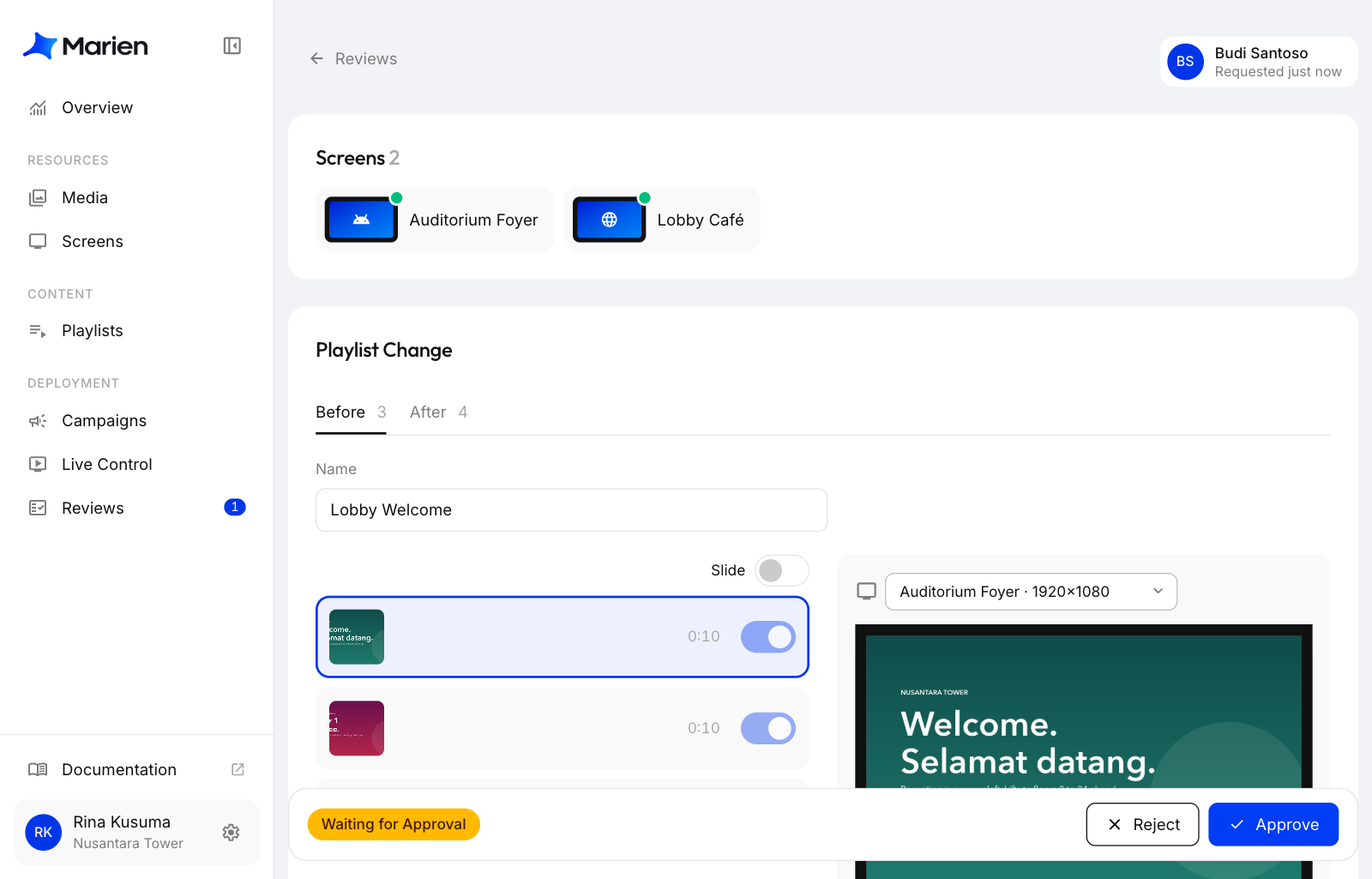
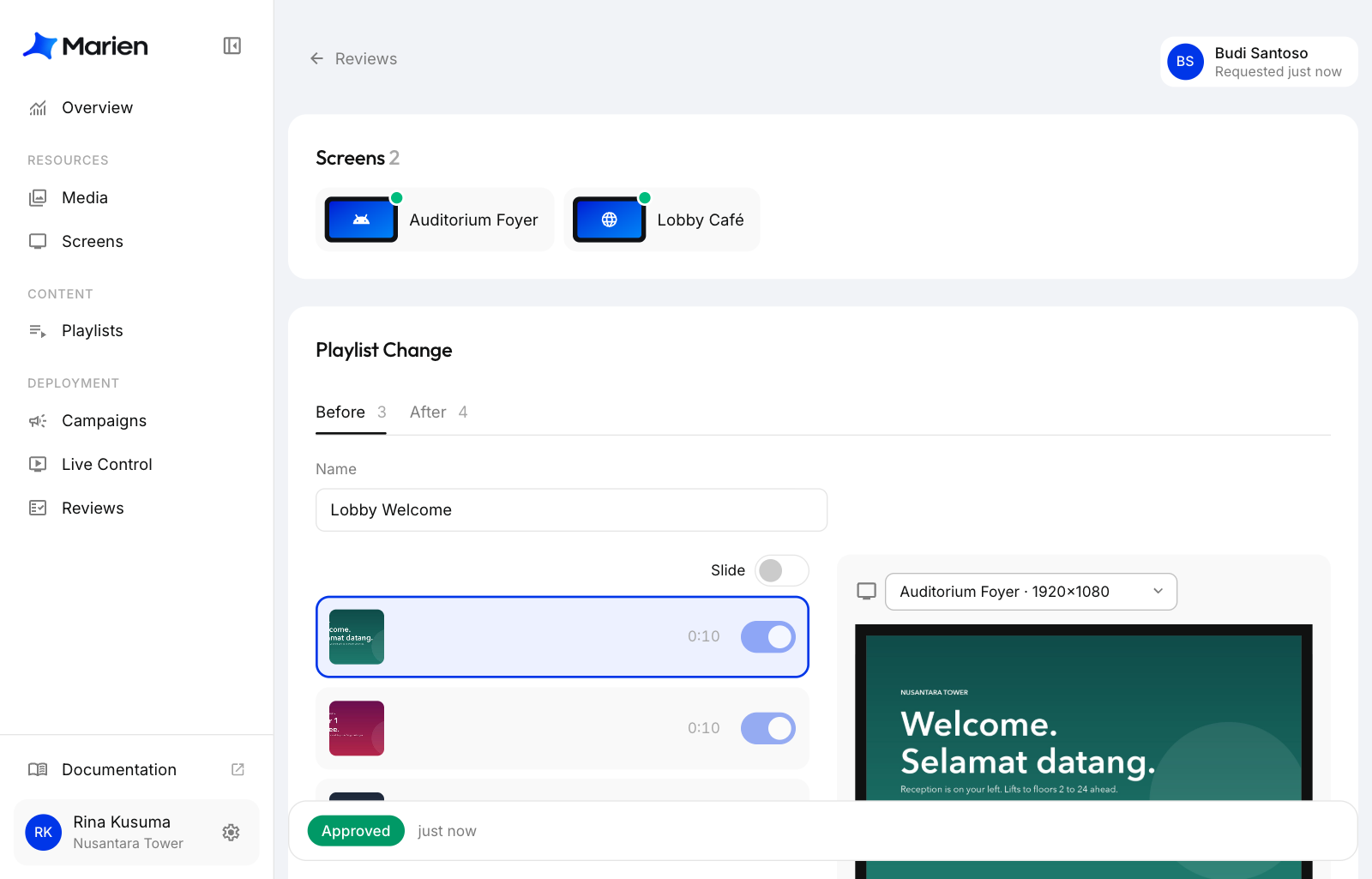
6. Click Approve if it looks good, then Approve again to confirm. The change is applied, and the screens pick it up within a few seconds. The review is marked Approved.
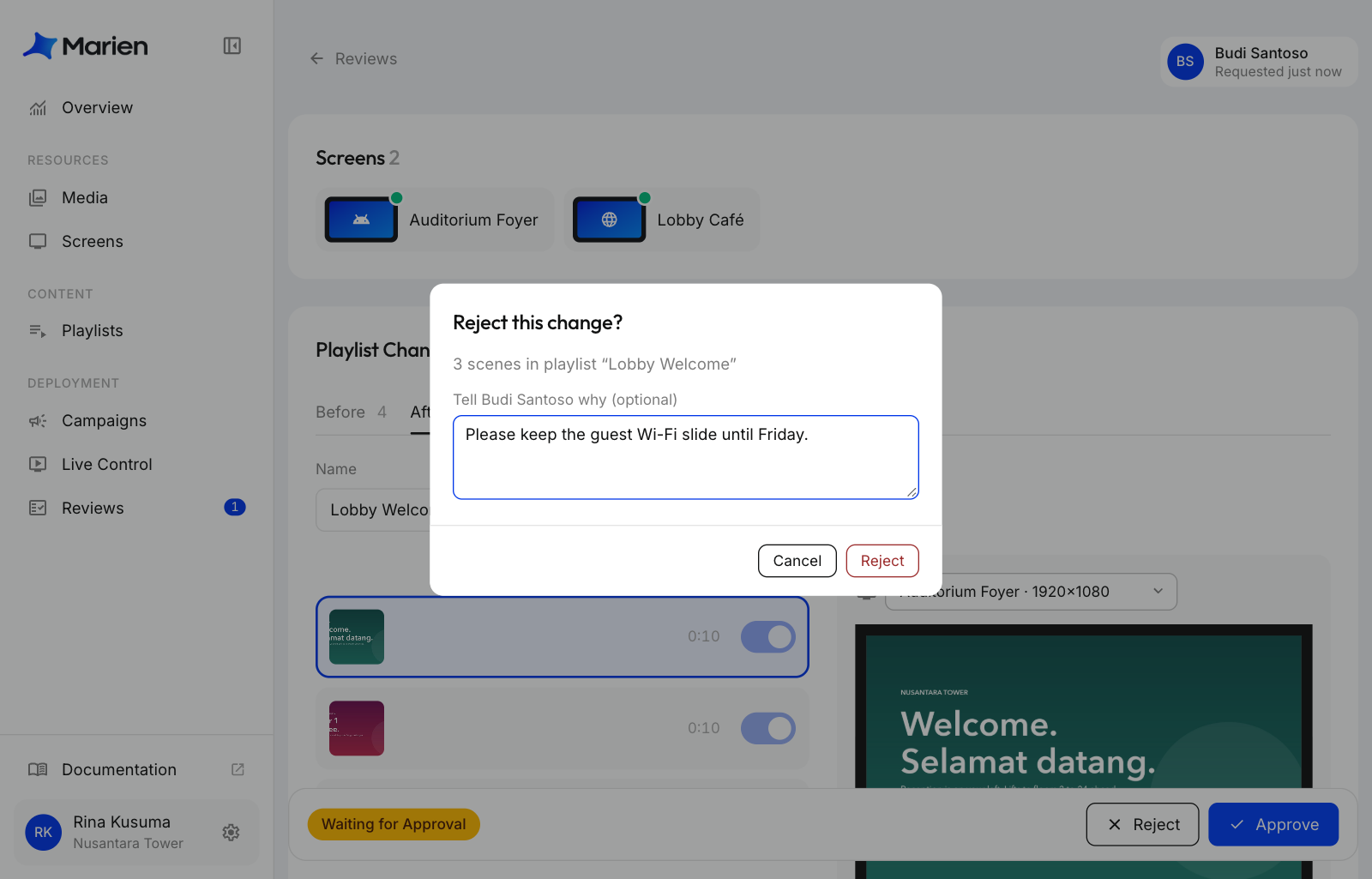
7. Or click Reject. You can add a note that explains why, so the person knows what to fix. Then click Reject again. Nothing changes on the screens.
See the result
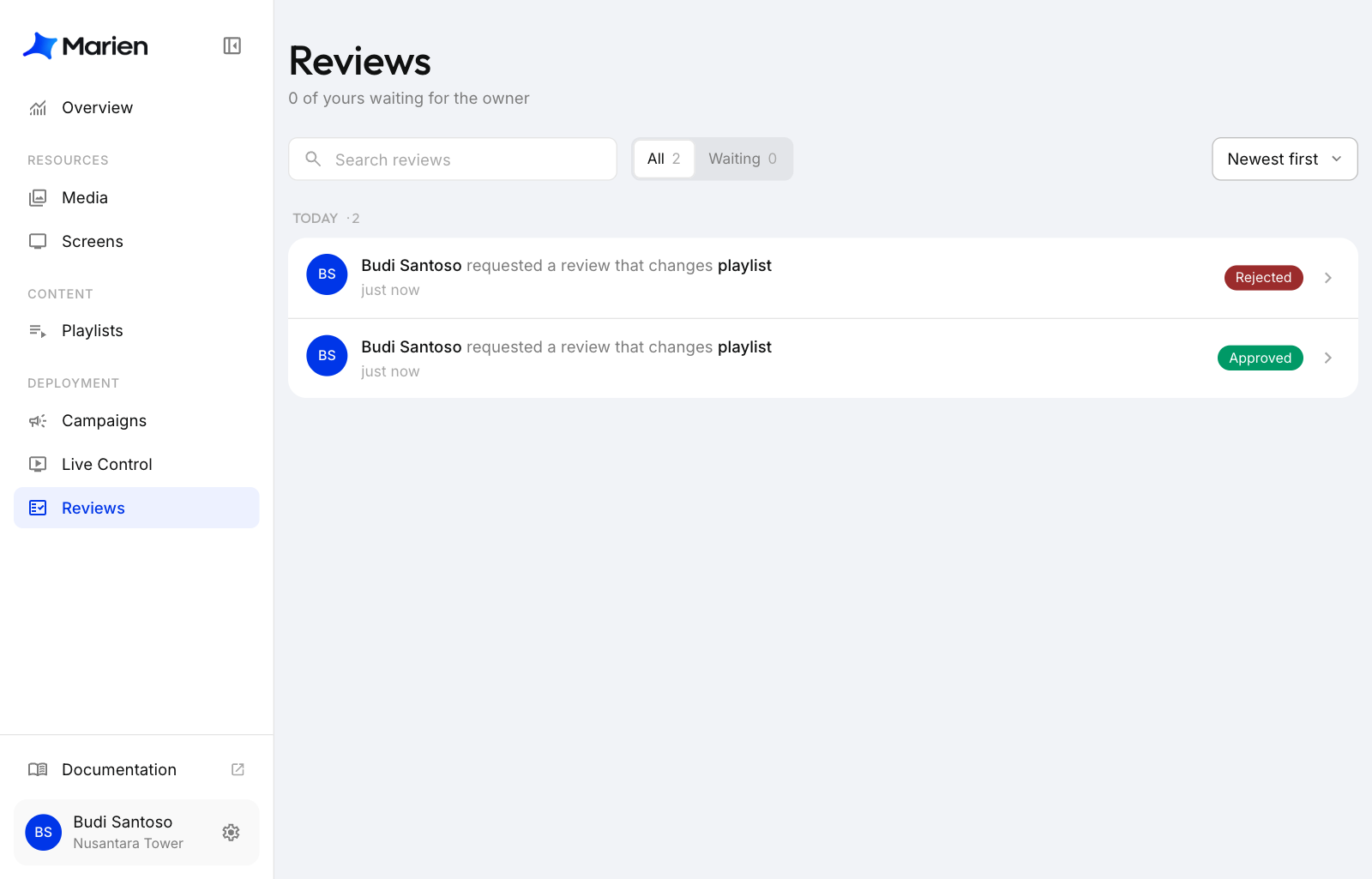
The person who sent the change finds it under Reviews as Approved or Rejected. If you wrote a note, they can read it there.